Track your QR code campaigns in Google Analytics using UTM parameters. Create reusable templates and attach them to Website URL QR codes.
Go to UTM Builder
Click "UTM Builder" in the sidebar to access the UTM management area.
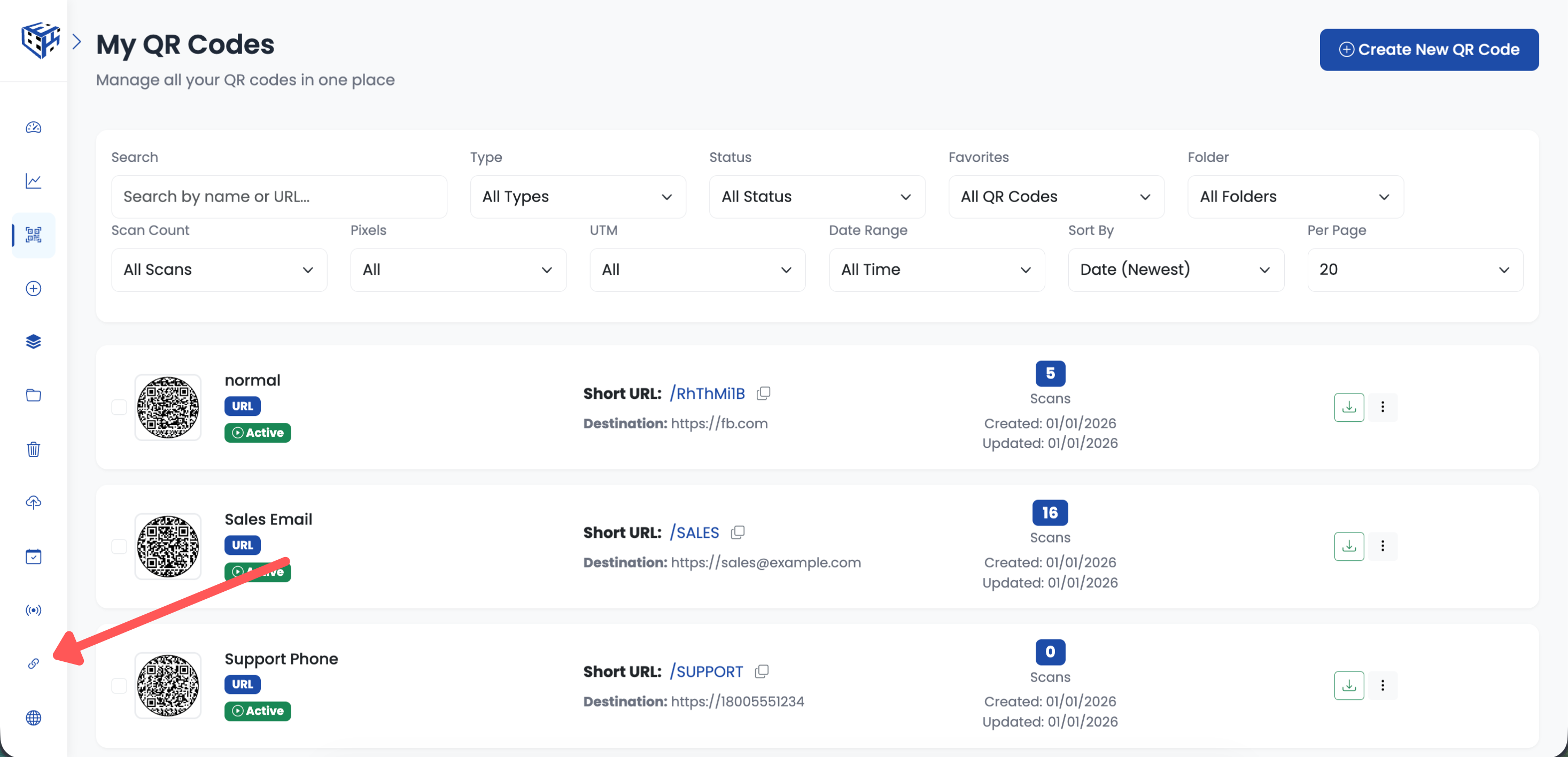
Click UTM Builder in the sidebar
Create New Template
Click the "Create UTM Template" button in the top right corner.
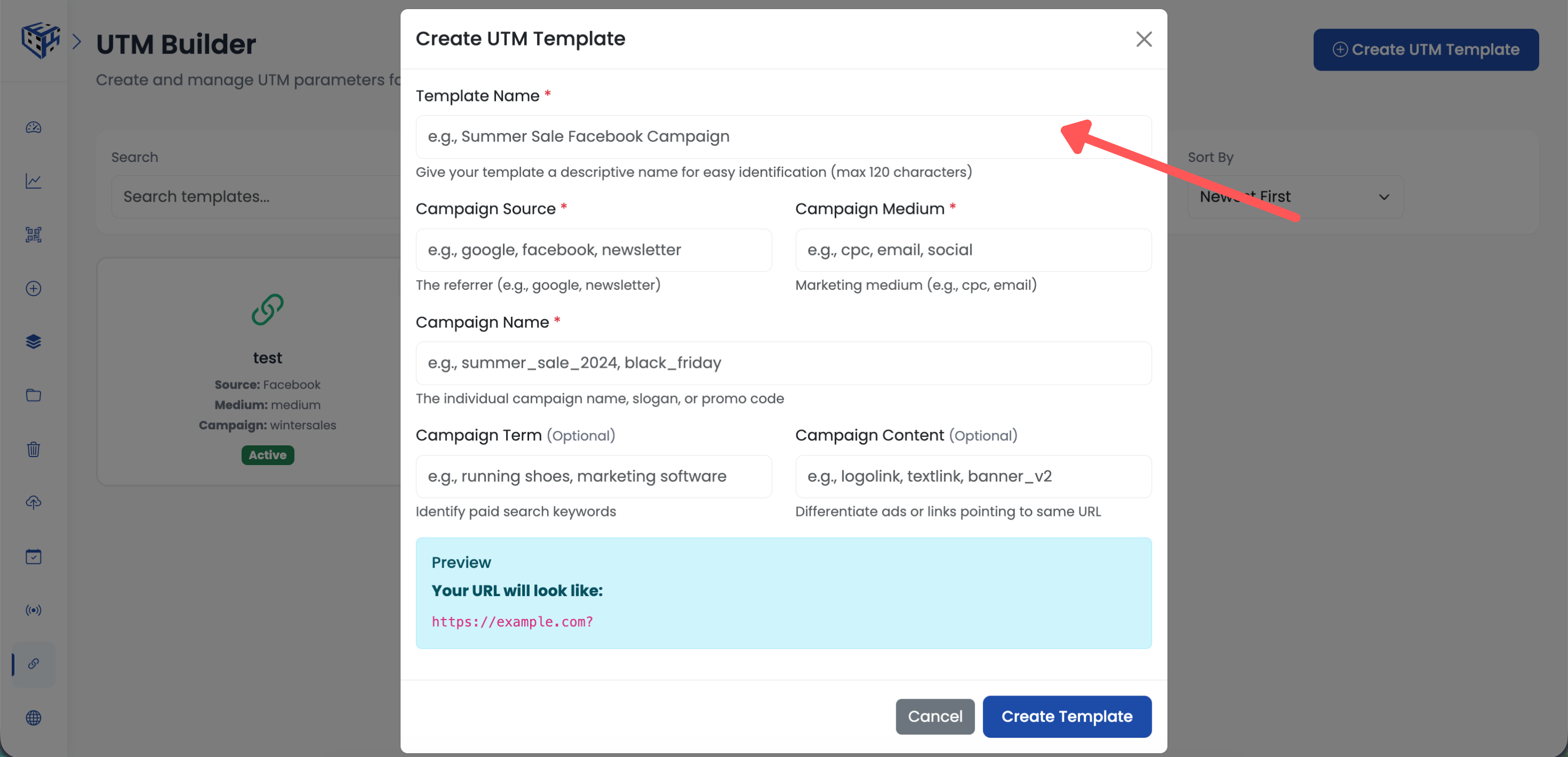
Click Create UTM Template button
Fill in UTM Parameters
Enter a template name and fill in the UTM parameters. Required fields are marked with *.
| Field | What to Enter | Example |
|---|---|---|
| Template Name | Descriptive name for this template | Summer Sale 2025 Campaign |
| Campaign Source * | Where traffic comes from | qr-code |
| Campaign Medium * | Type of marketing | |
| Campaign Name | Your campaign name | summer-sale-2025 |
| Campaign Term | Keywords (optional) | discount |
| Campaign Content | Version identifier (optional) | flyer-mall |
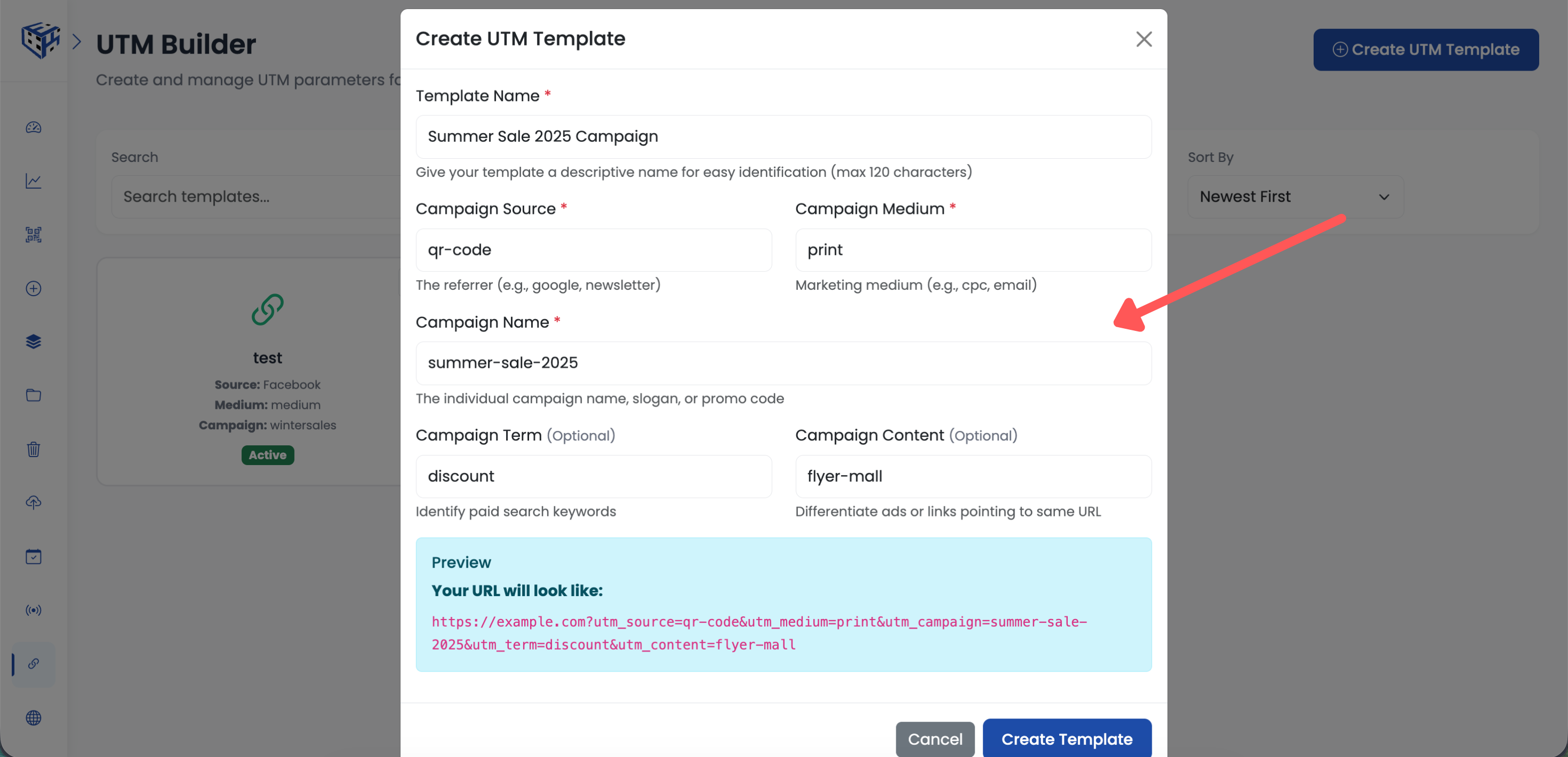
Fill in the UTM parameters
Save Template
Click "Save" to create your UTM template. It will appear in your templates list.
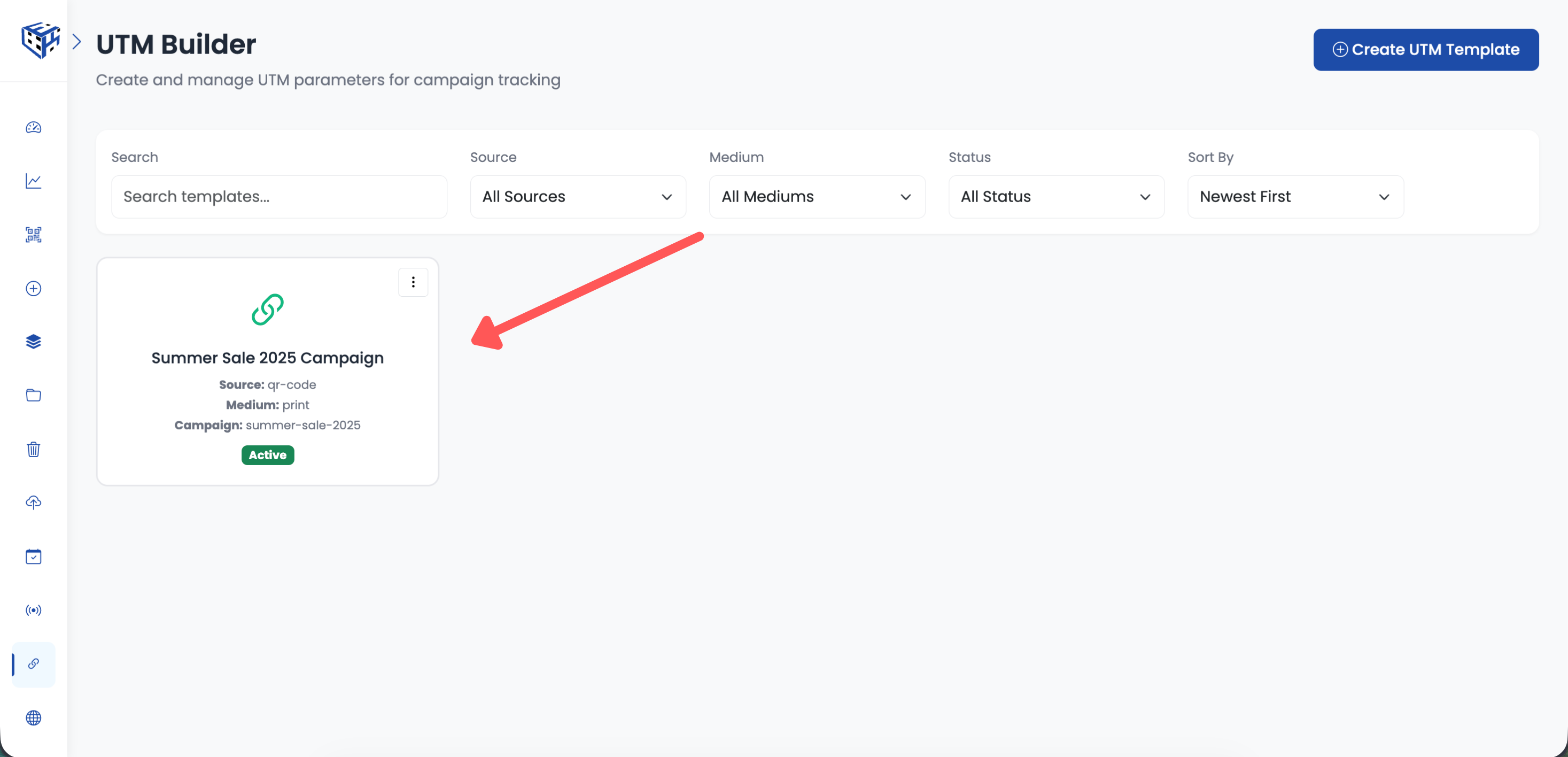
Your UTM template is now saved
Create or Edit a URL QR Code
Create a new Website URL QR code, or click on an existing URL QR code to edit it.
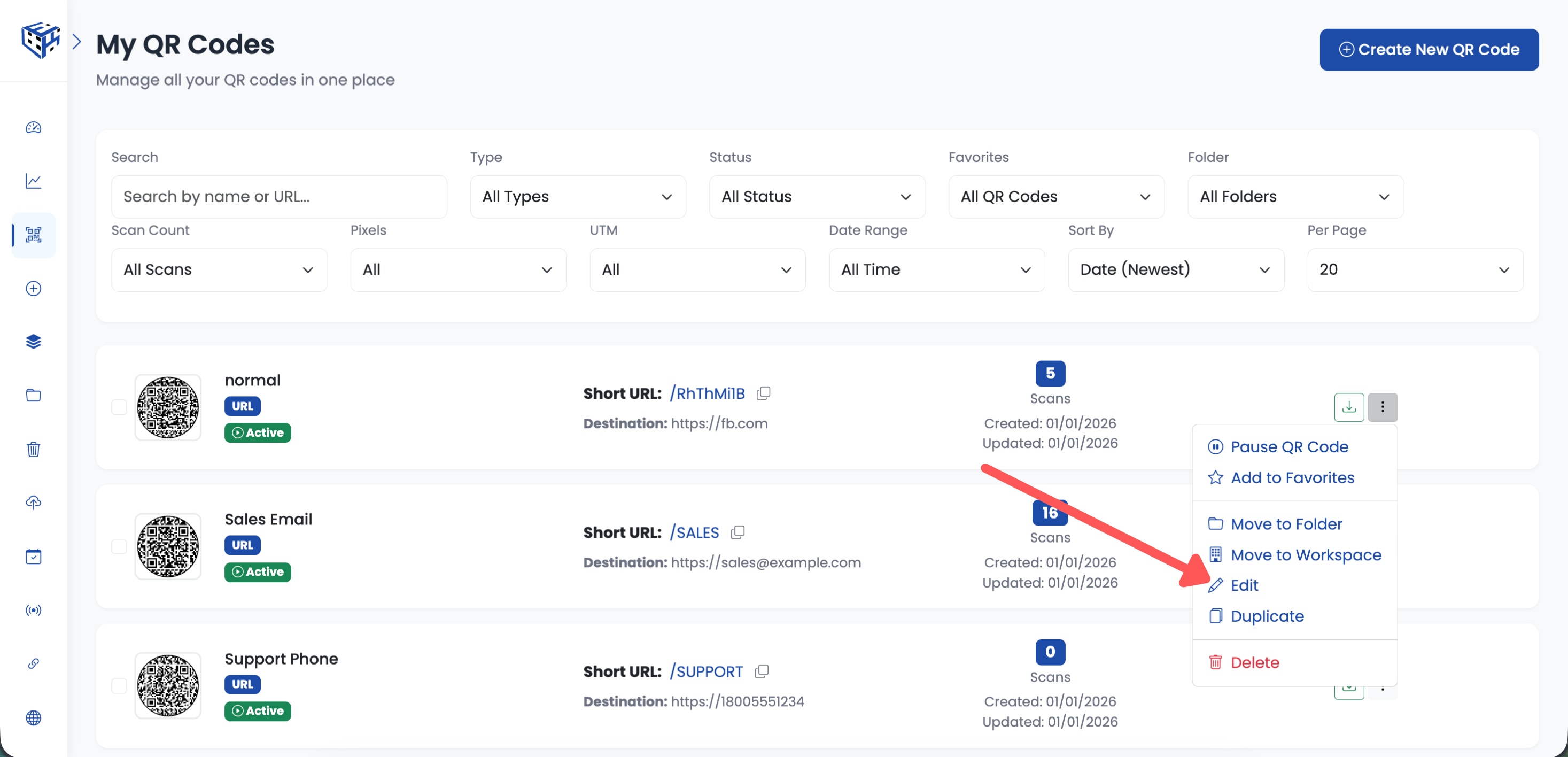
Create new or edit existing URL QR code
Find UTM Campaign Tracking
In the URL section (below the URL input field), find the "UTM Campaign Tracking" dropdown.
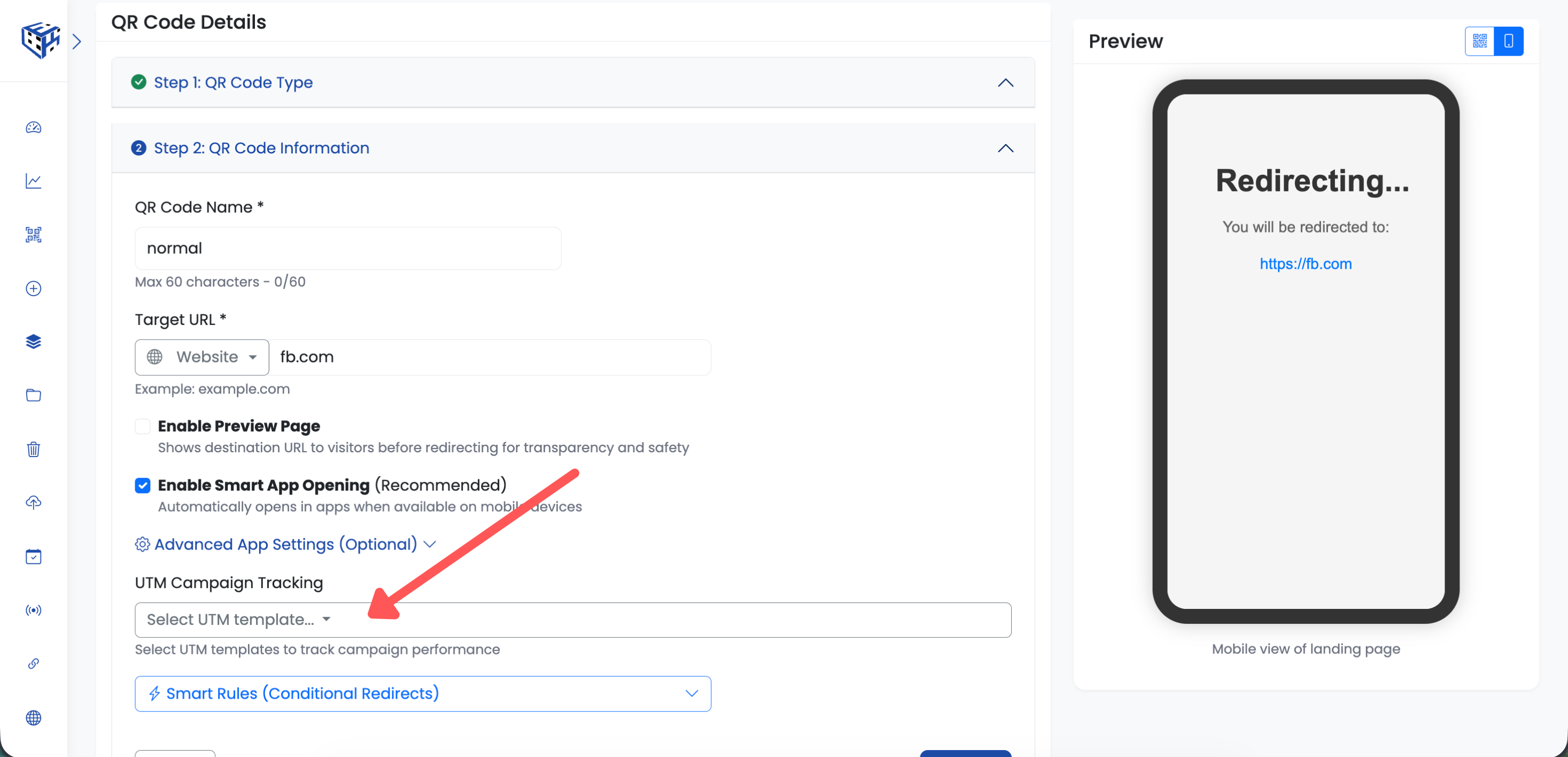
Find UTM Campaign Tracking in the URL section
Select UTM Template
Click the dropdown and select your UTM template from the list. You can search by typing the template name.
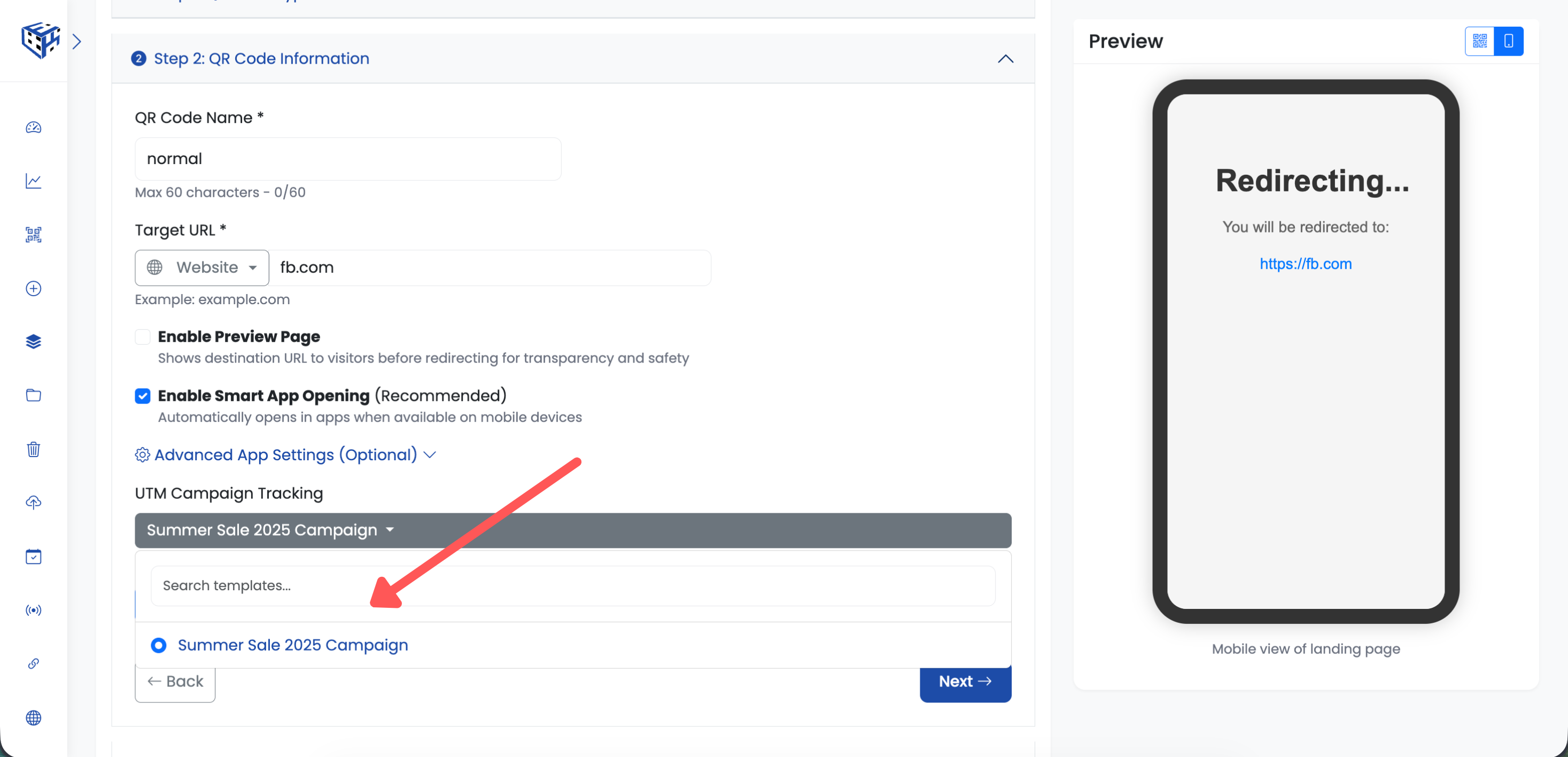
Select your UTM template from the dropdown
Save Your QR Code
Click "Create QR Code" (for new) or "Update" (for existing) to save. The UTM parameters will now be added to the destination URL whenever someone scans this QR code.
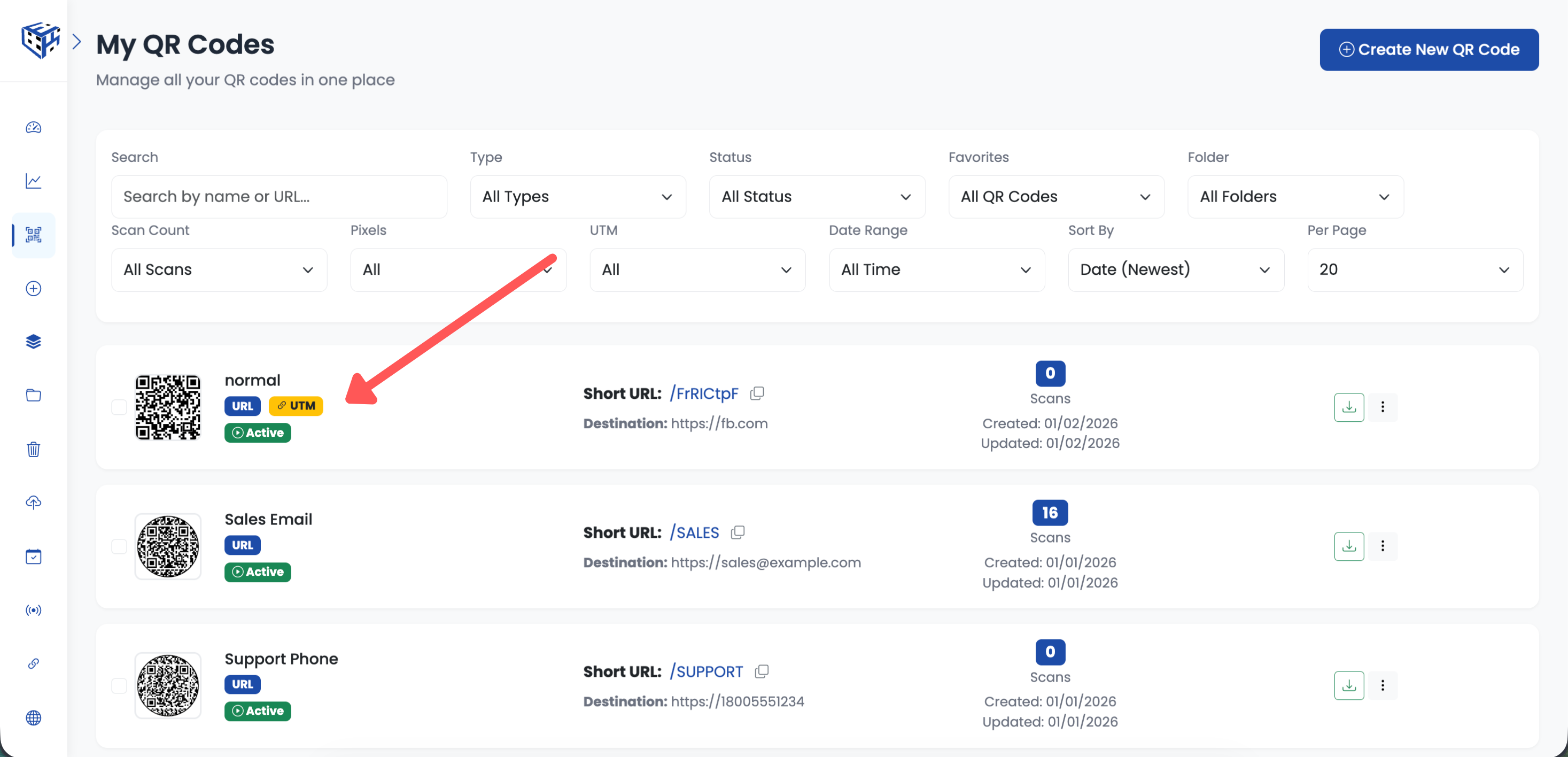
Save to attach UTM tracking
View UTM Campaign Stats
After people scan your QR code, you can view UTM campaign performance in two places:
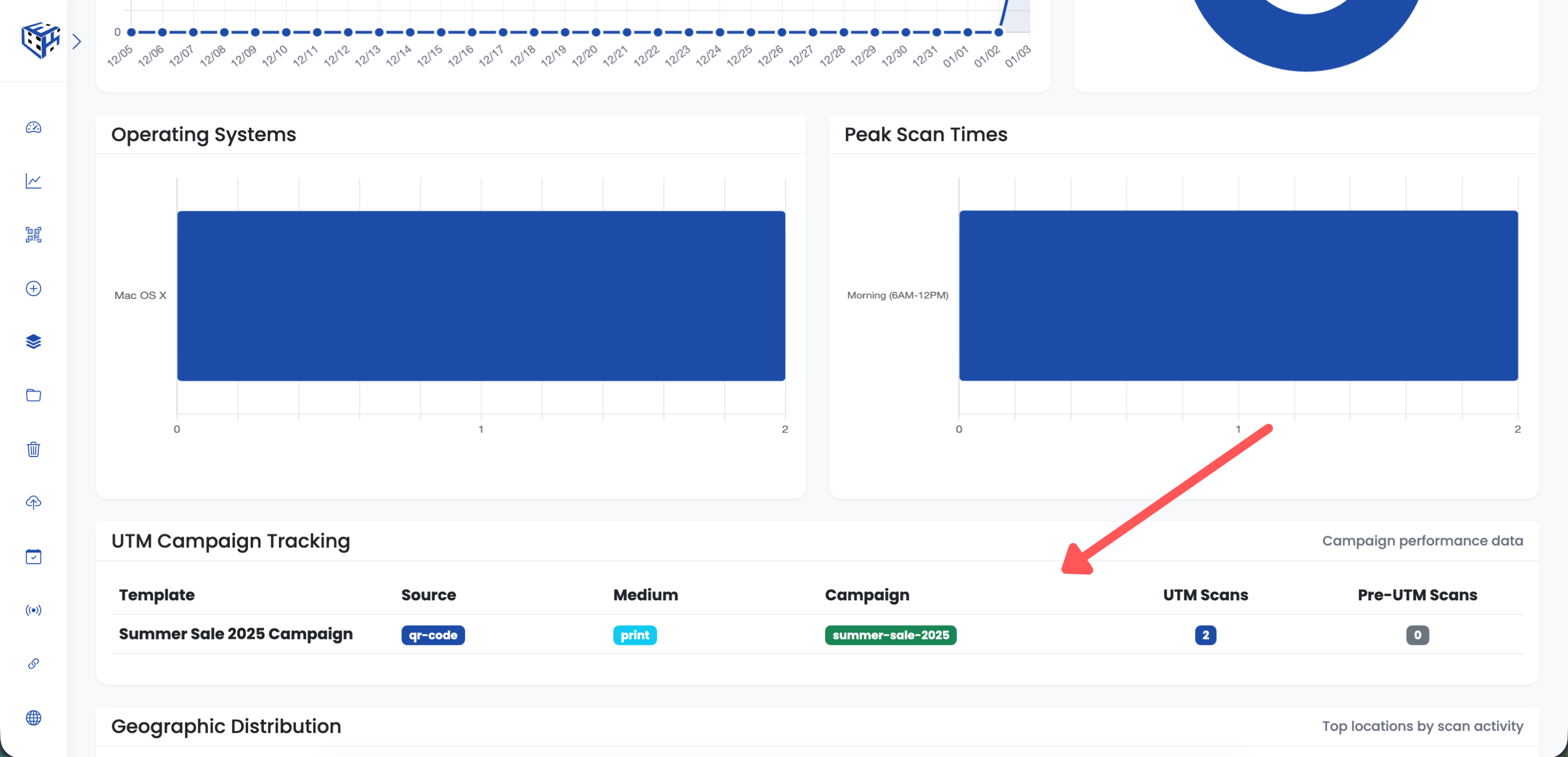
UTM campaign stats in ElkQR Analytics
In ElkQR Analytics
Click on your QR code to open it, then go to the Analytics tab. Scroll down to the "UTM Campaign Tracking" section to see how many scans came from each UTM template.
In Google Analytics
In Google Analytics 4, go to Reports → Acquisition → Traffic acquisition. Filter by Source/Medium to see your "qr-code / print" traffic. You can also view campaign performance under Acquisition → Campaigns.
Tip
Update a UTM template to update all linked QR codes automatically. No need to edit each QR code individually!
- UTM Tracking Parameters - Learn more about UTM tracking features
Still facing difficulties?
Click here to contact our support team for assistance