Create multiple QR codes at once using CSV upload. Perfect for product catalogs, inventory, or large campaigns.
Go to Bulk QR Codes
From your dashboard, click "Bulk QR Codes" in the sidebar.
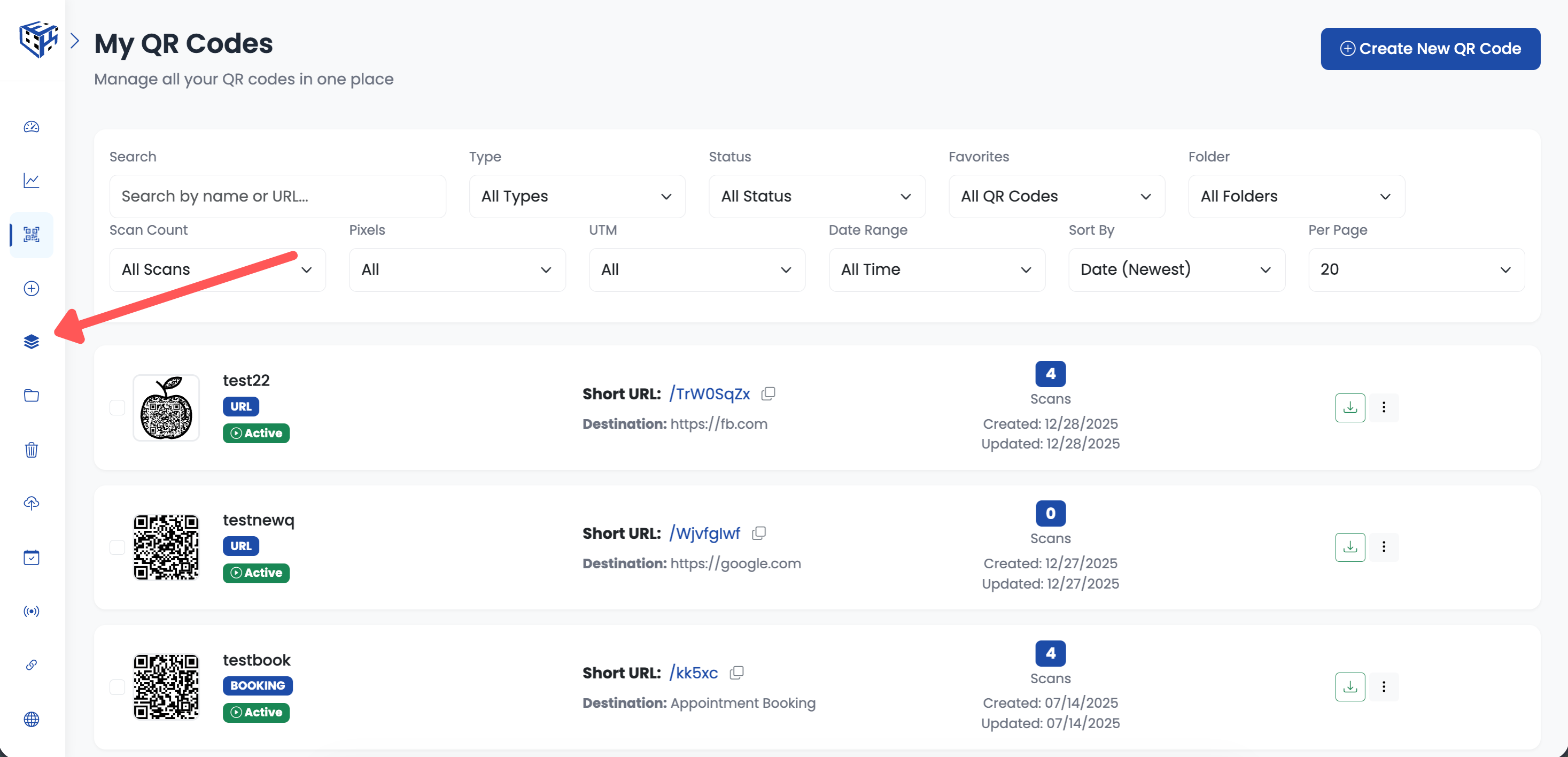
Click Bulk QR Codes in the sidebar
Select QR Type
Choose the type of QR codes you want to create in bulk. Options include Website URL, PDF, Multiple Links, VCard Plus, App Download, and WiFi. Click on your desired type, then click "Next: Upload CSV".
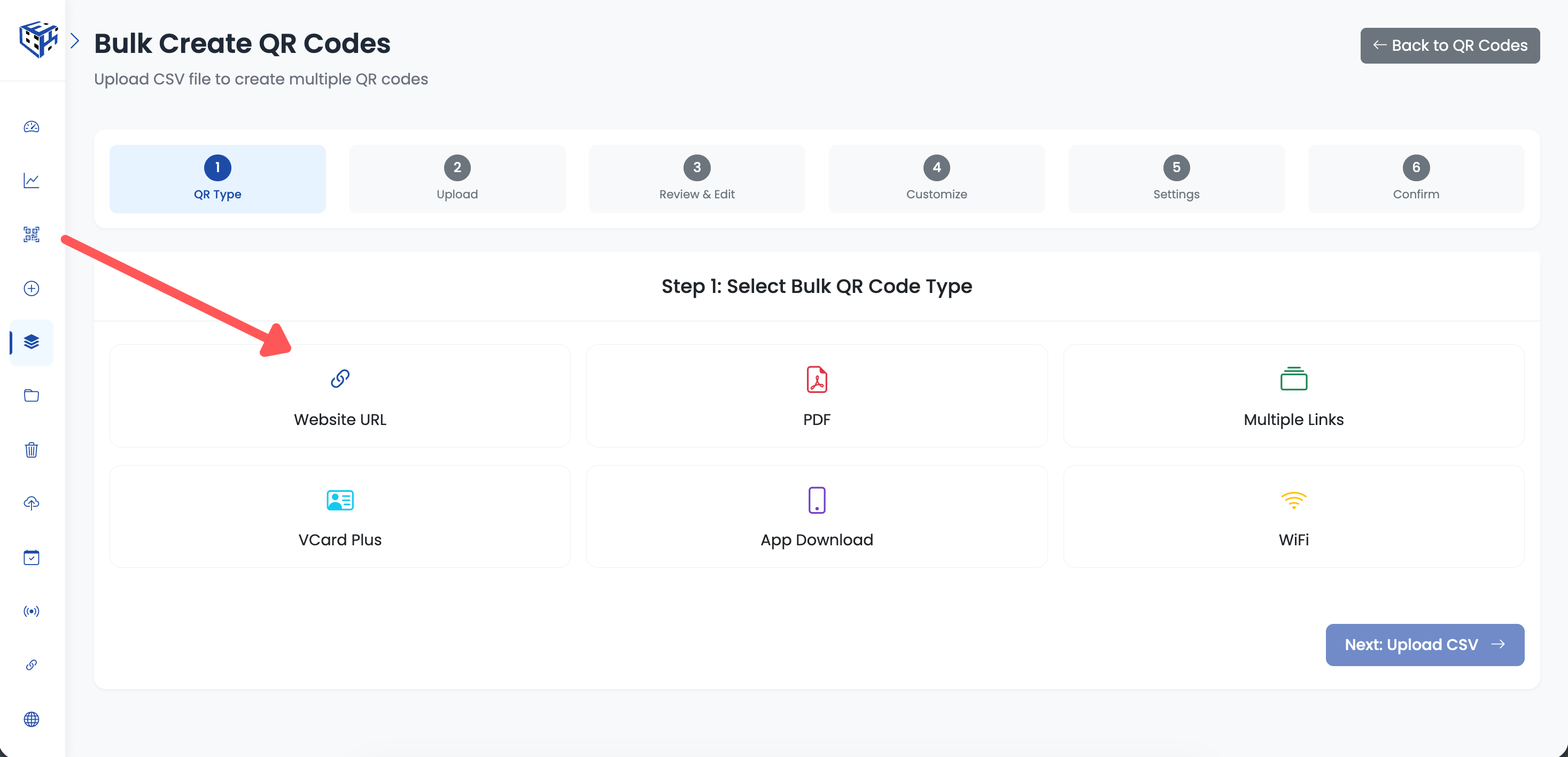
Select the QR code type for bulk creation
Upload CSV
Download the CSV template by clicking the template link, fill in your data (names, URLs, etc.) in Excel or Google Sheets, then upload your completed CSV file. Click "Next" to proceed.
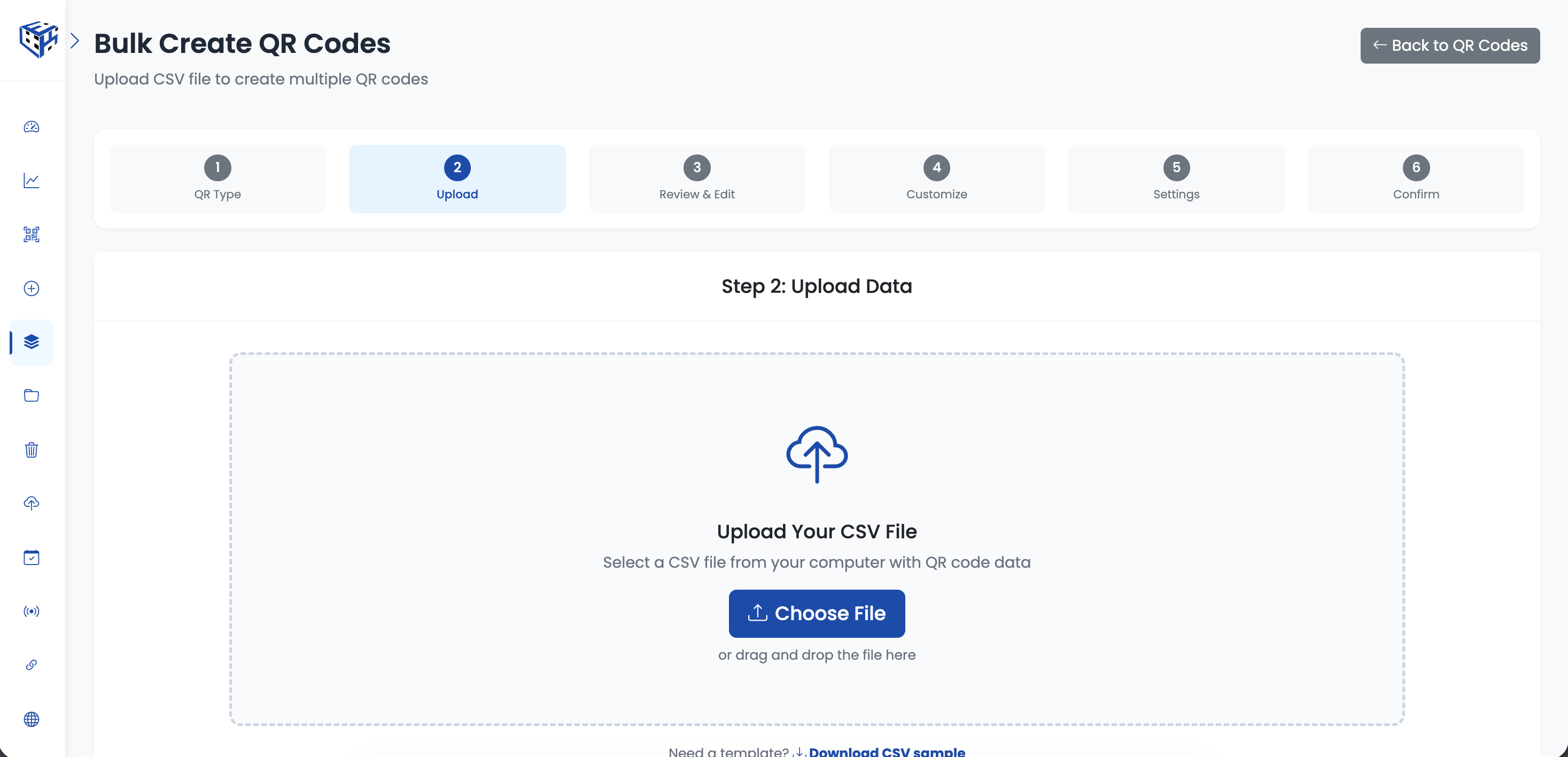
Download the CSV template
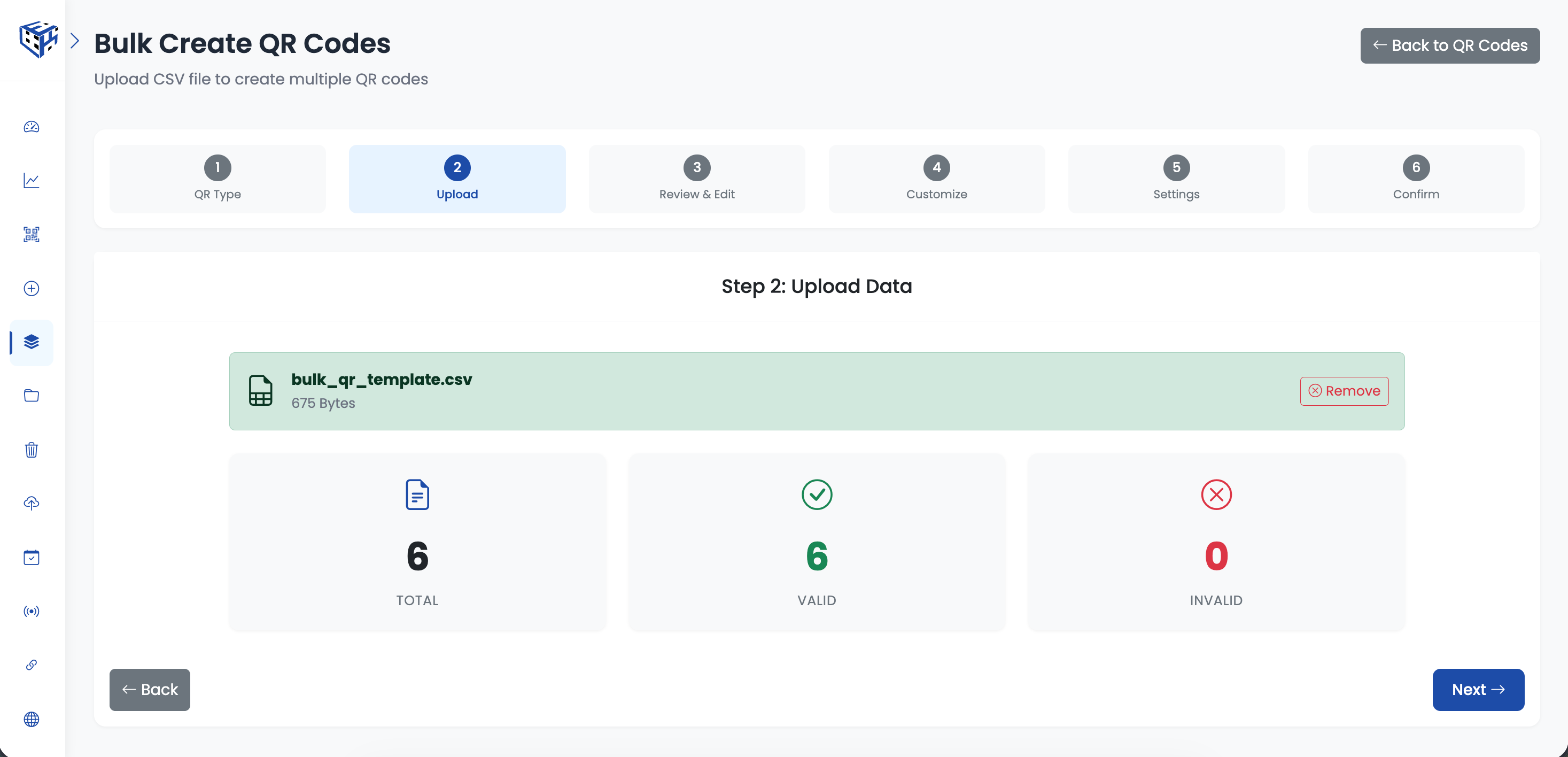
Upload your completed CSV file
Review & Edit
Preview your uploaded data in a table. You can edit any row directly if needed. Make sure all data is correct before proceeding.
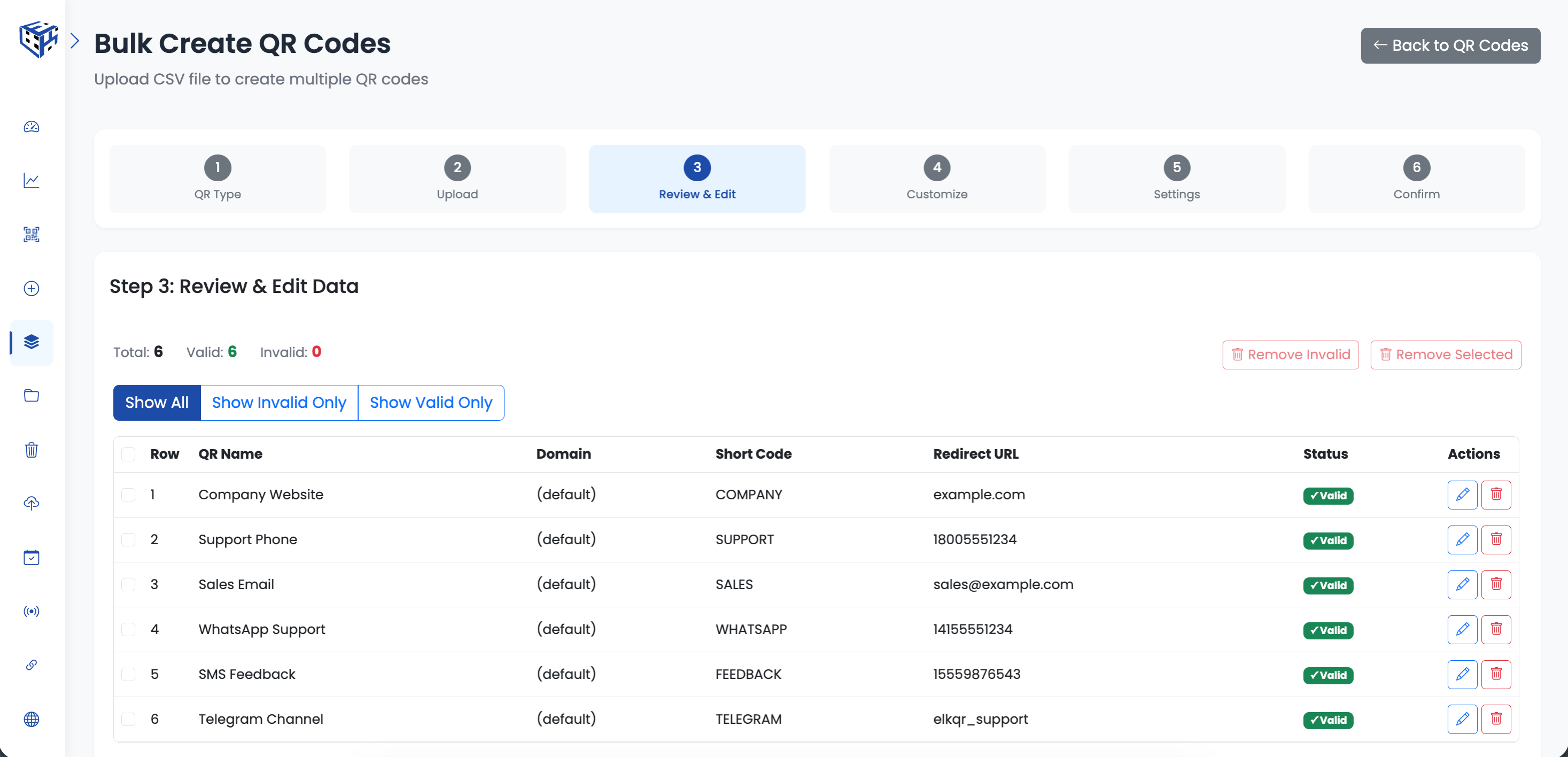
Review and edit your QR code data
Customize Appearance
Customize the appearance of your QR codes. Choose colors, add a logo, select patterns and corner styles. All QR codes in the batch will use the same design.
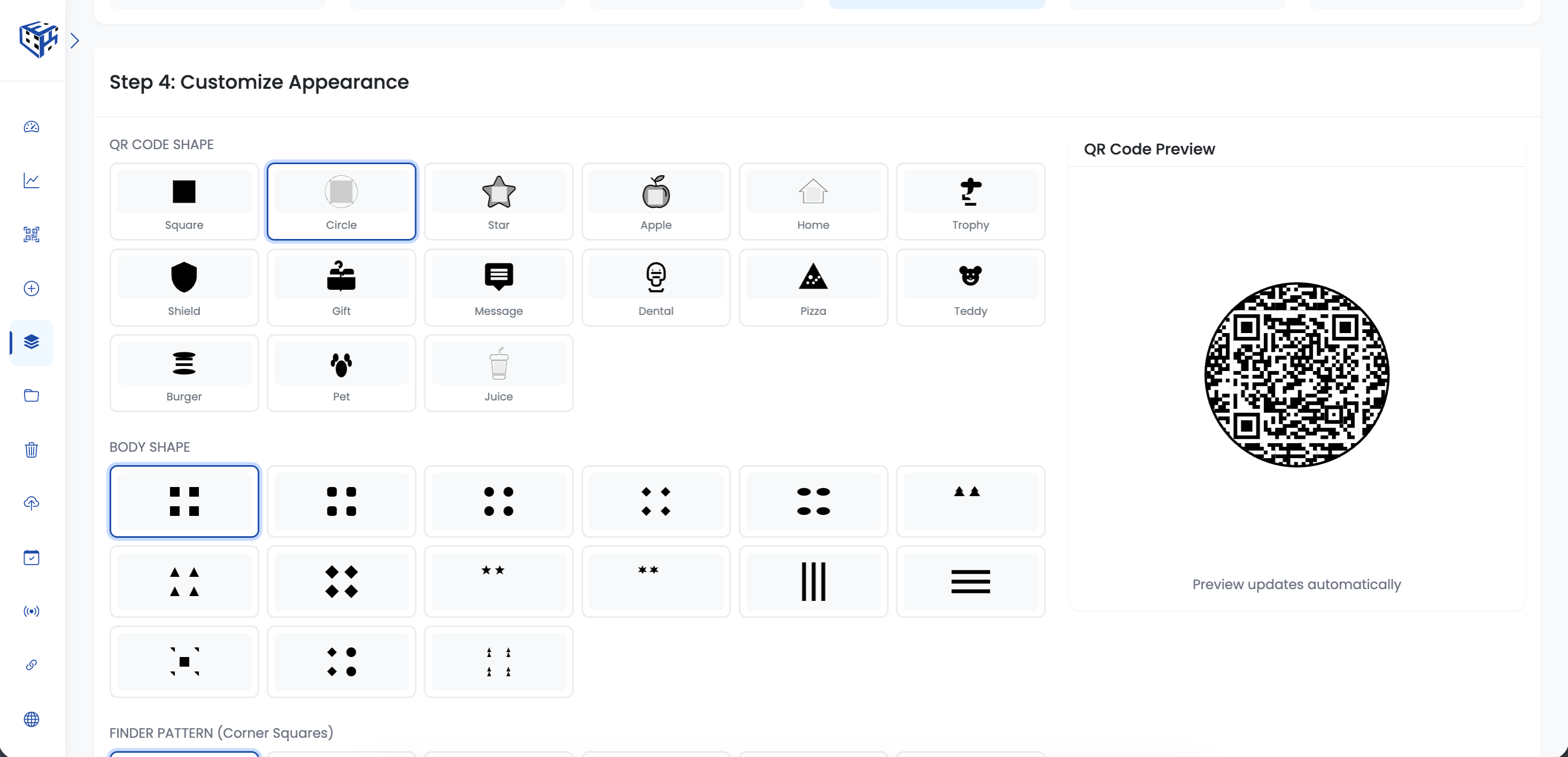
Customize colors, logo, and style for all QR codes
Advanced Settings
Configure advanced settings like password protection, expiry date, scan limits, and serial numbers. Enable "Display serial number below QR code" to add unique identifiers (e.g., 001-290825) for easy tracking. These settings apply to all QR codes in the batch.
Note
Serial numbers only appear on square shape QR codes. Format: Index-DayMonthYear (e.g., 001-290825)
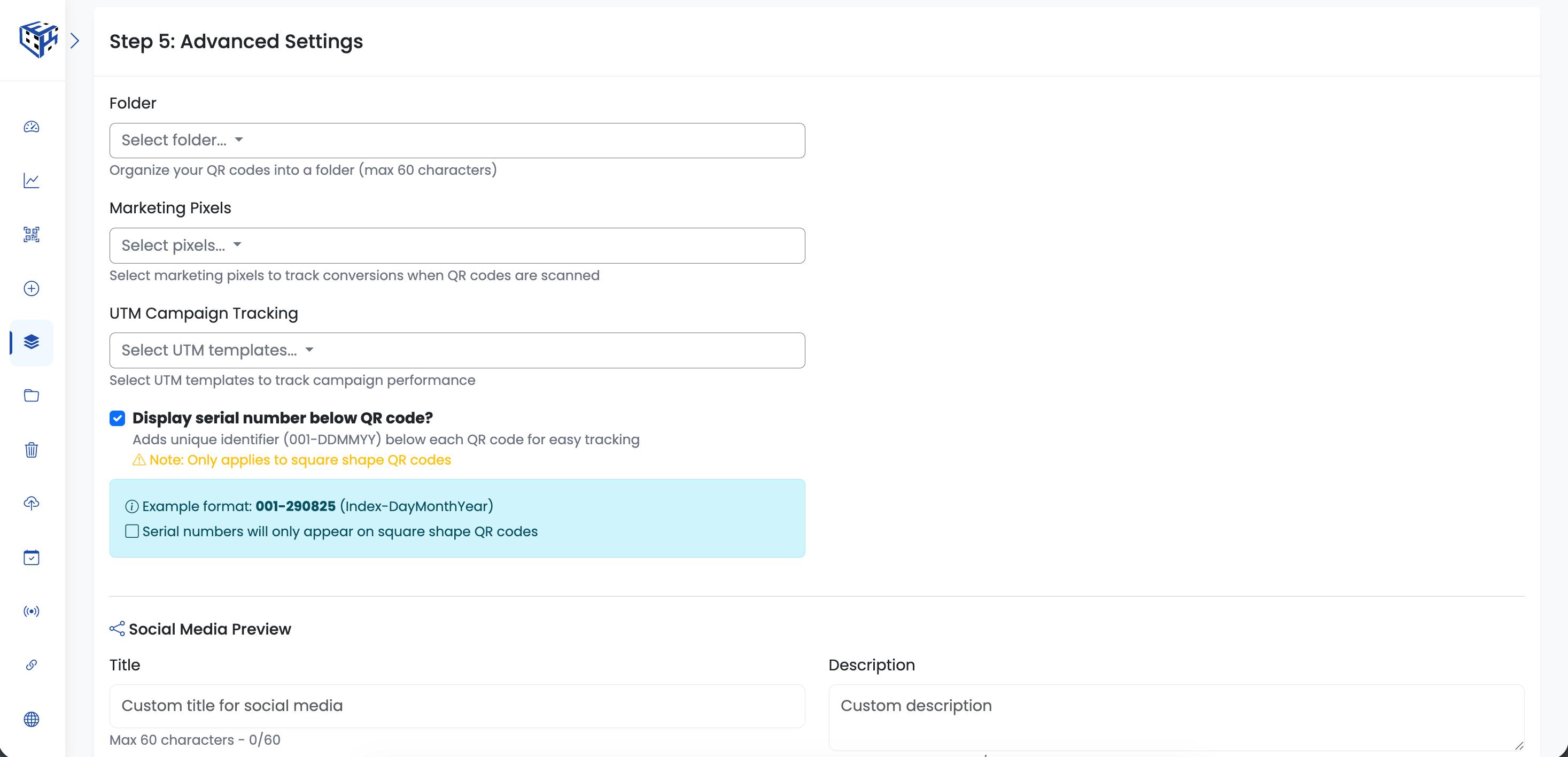
Set password, expiry, scan limits, and serial numbers
Confirm & Create
Review all your settings and data one final time. Click "Create QR Codes" to start bulk creation. You'll receive an email notification when all QR codes are ready.
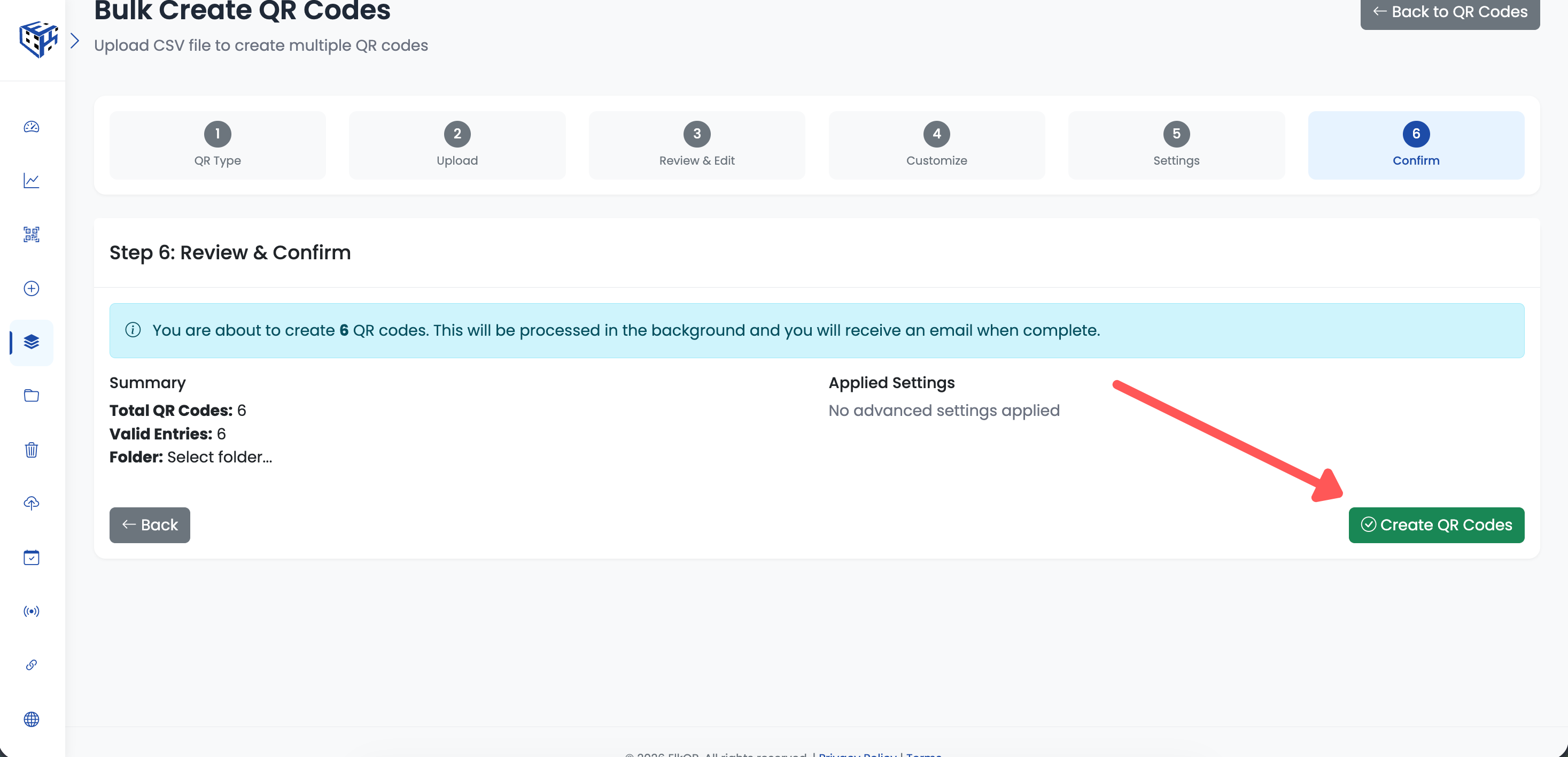
Click Create QR Codes to start bulk creation
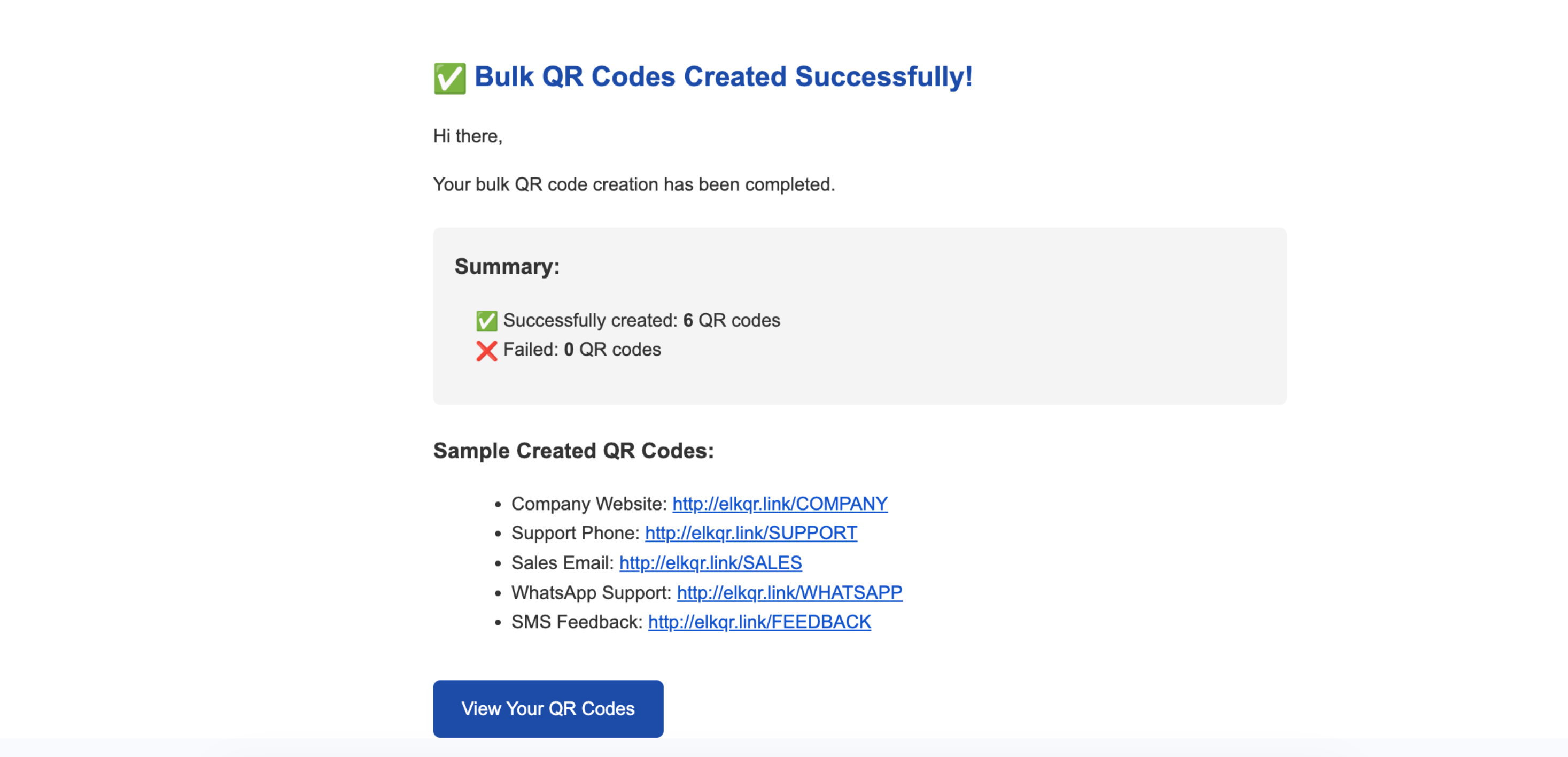
You'll receive an email when bulk creation is complete
Tip
Make sure all URLs start with http:// or https:// to avoid errors during upload.
Note
The number of QR codes you can create at once depends on your plan limits.
Still facing difficulties?
Click here to contact our support team for assistance