Add password protection to any QR code. Only people with the correct password can access the content.
Create or Edit a QR Code
Create a new QR code or click the edit button on an existing one.
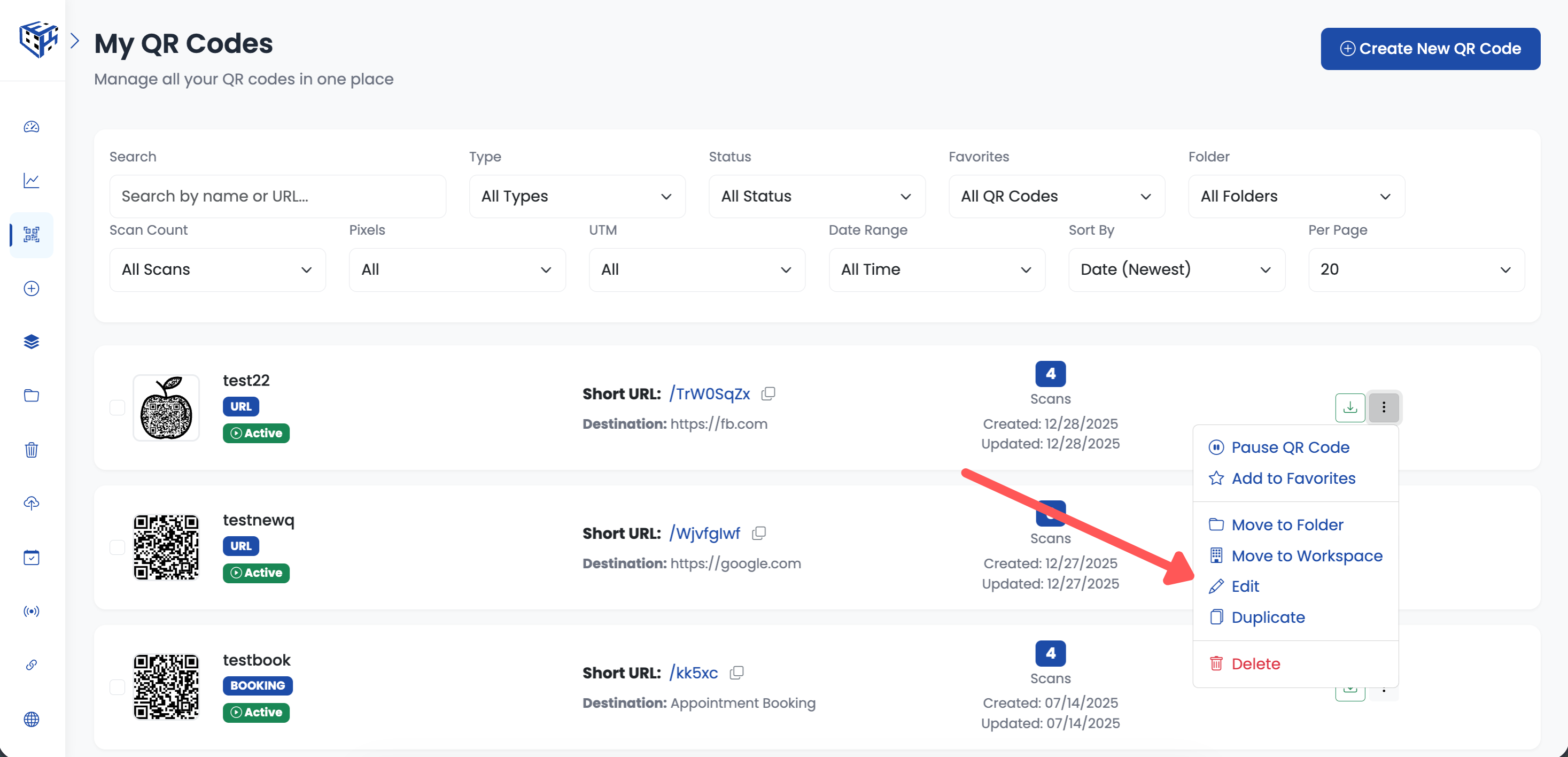
Create new or edit existing QR code
Go to Advanced Settings
Click on the Advanced Settings section to expand it.
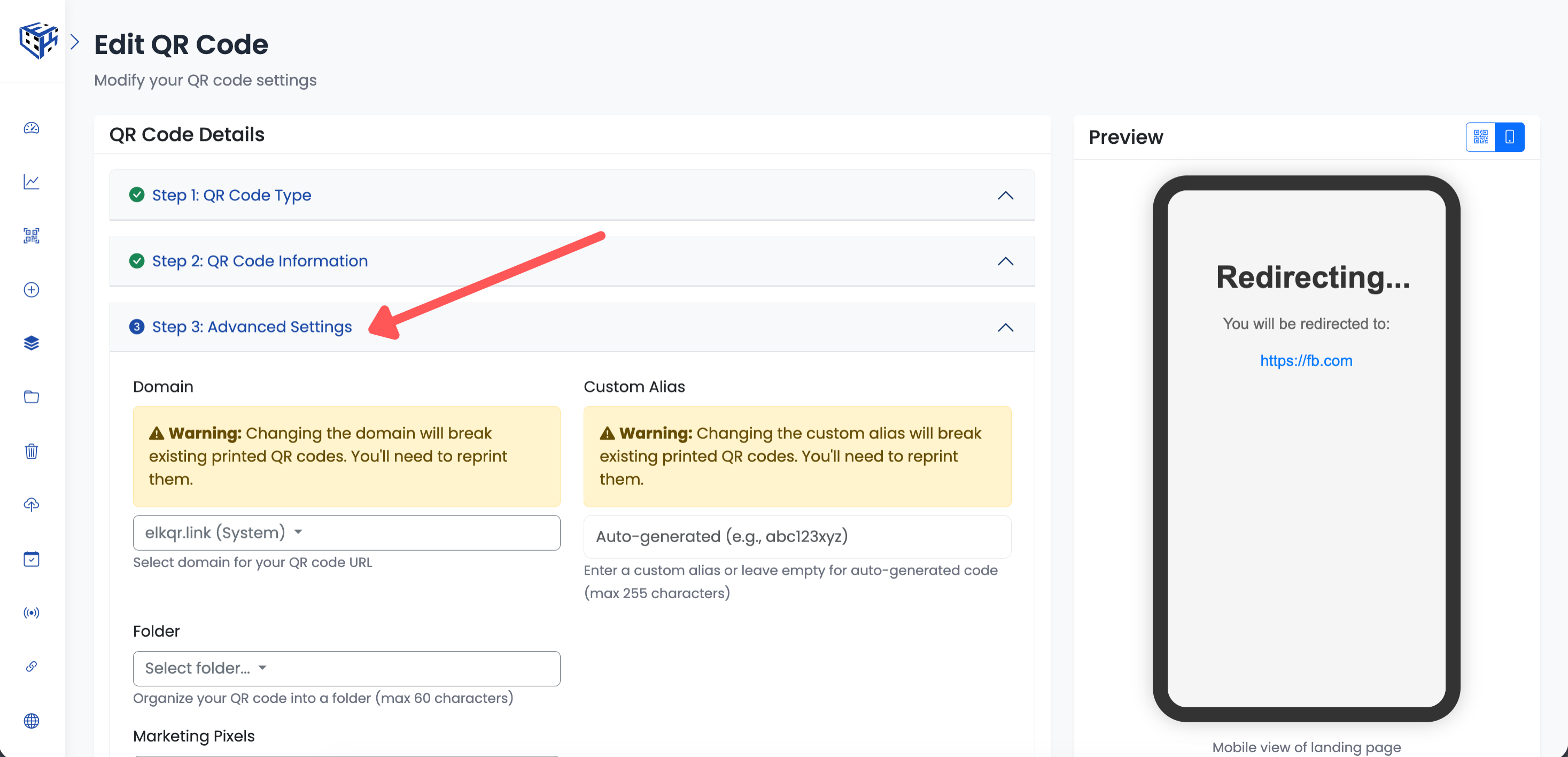
Go to Advanced Settings section
Find Password Protection
Scroll down to find the Password Protection section with a lock icon.
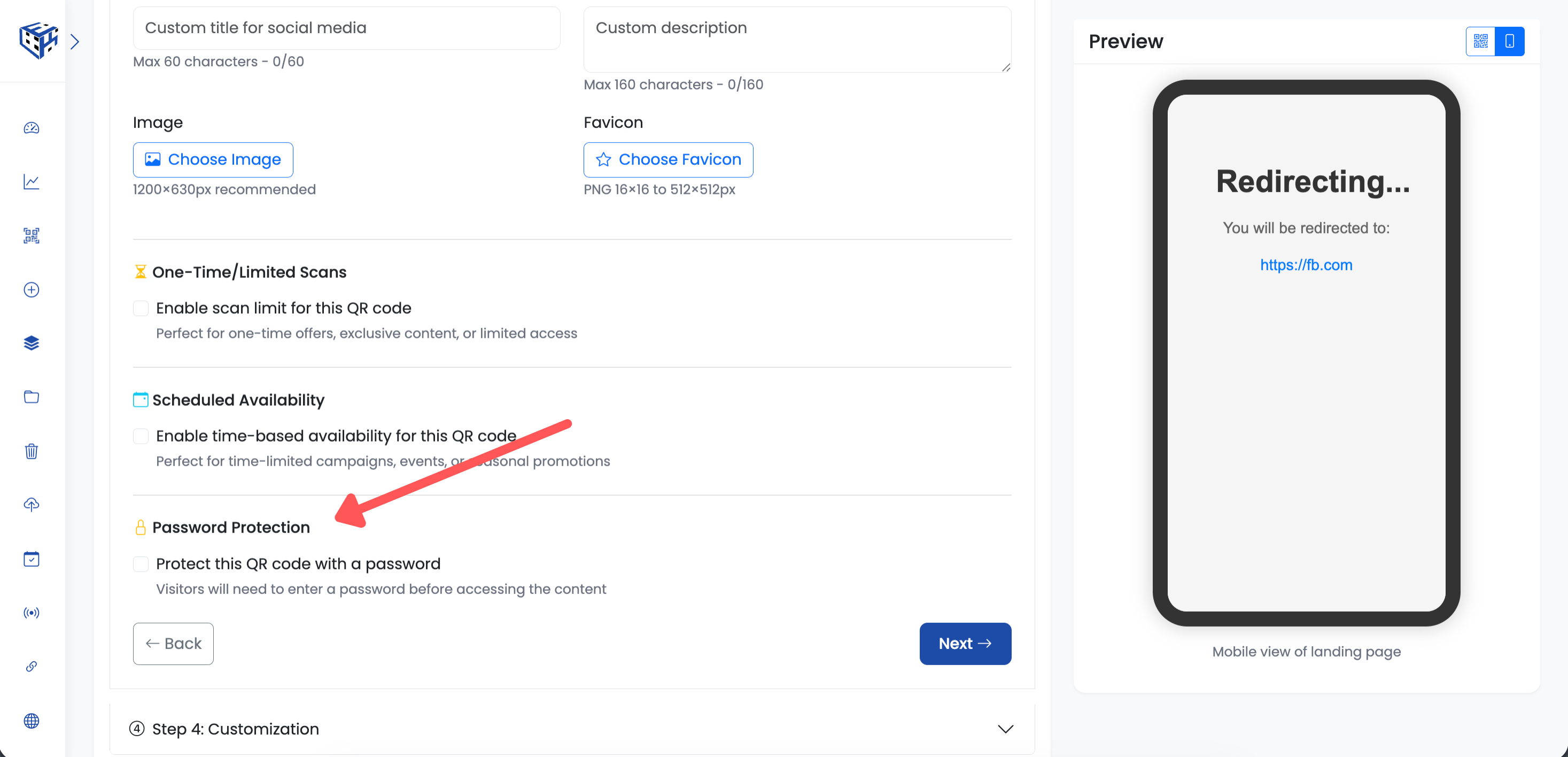
Find the Password Protection section
Enable Password Protection
Check the box "Protect this QR code with a password". The password fields will appear.
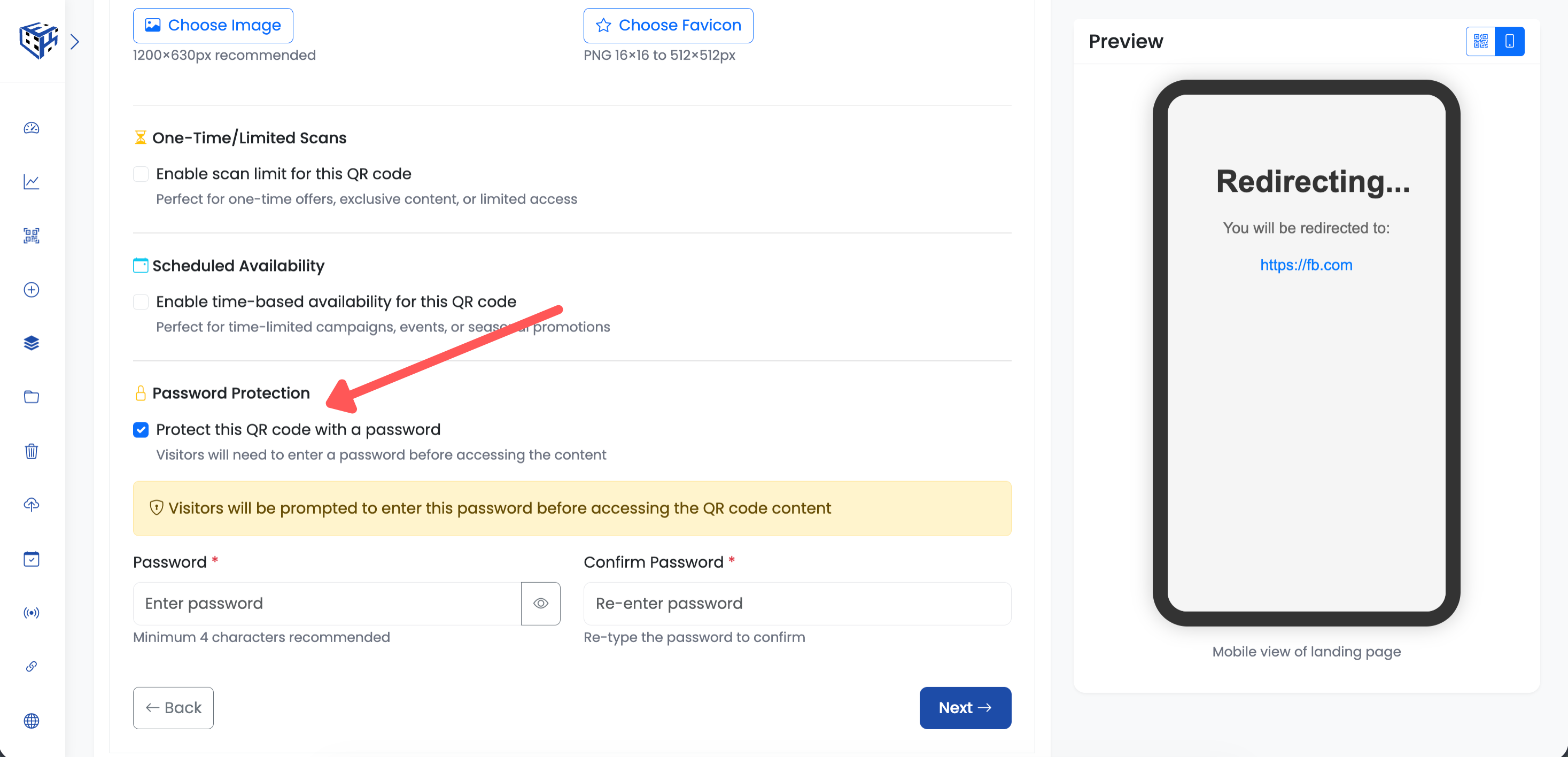
Check the box to enable password protection
Enter Your Password
Enter your password in the first field. Re-enter it in the Confirm Password field. Use the eye icon to show/hide the password while typing.
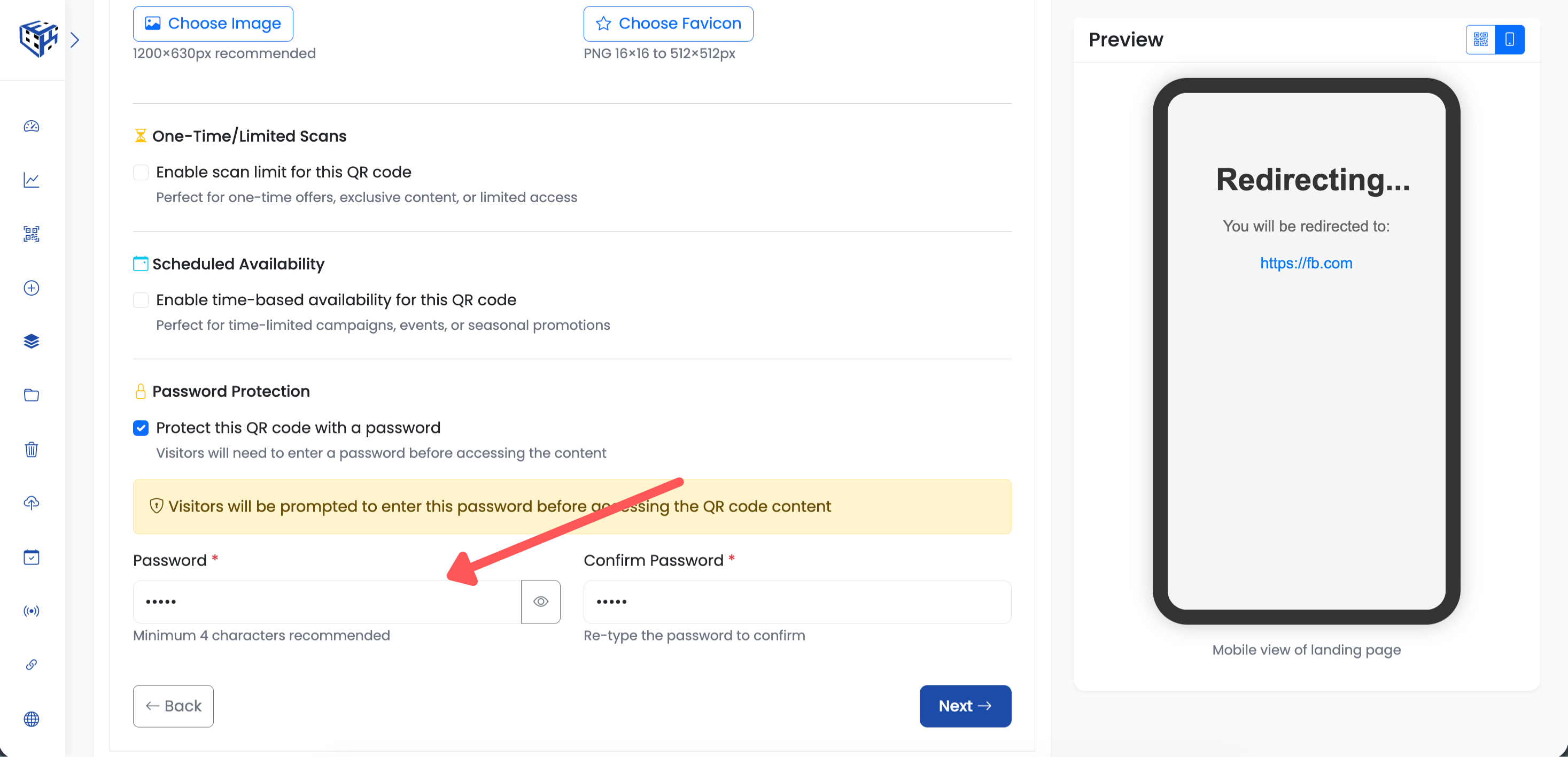
Enter your password and confirm it
Save Your QR Code
Click "Create QR Code" (for new) or "Update" (for existing) to save. Your QR code is now password protected.
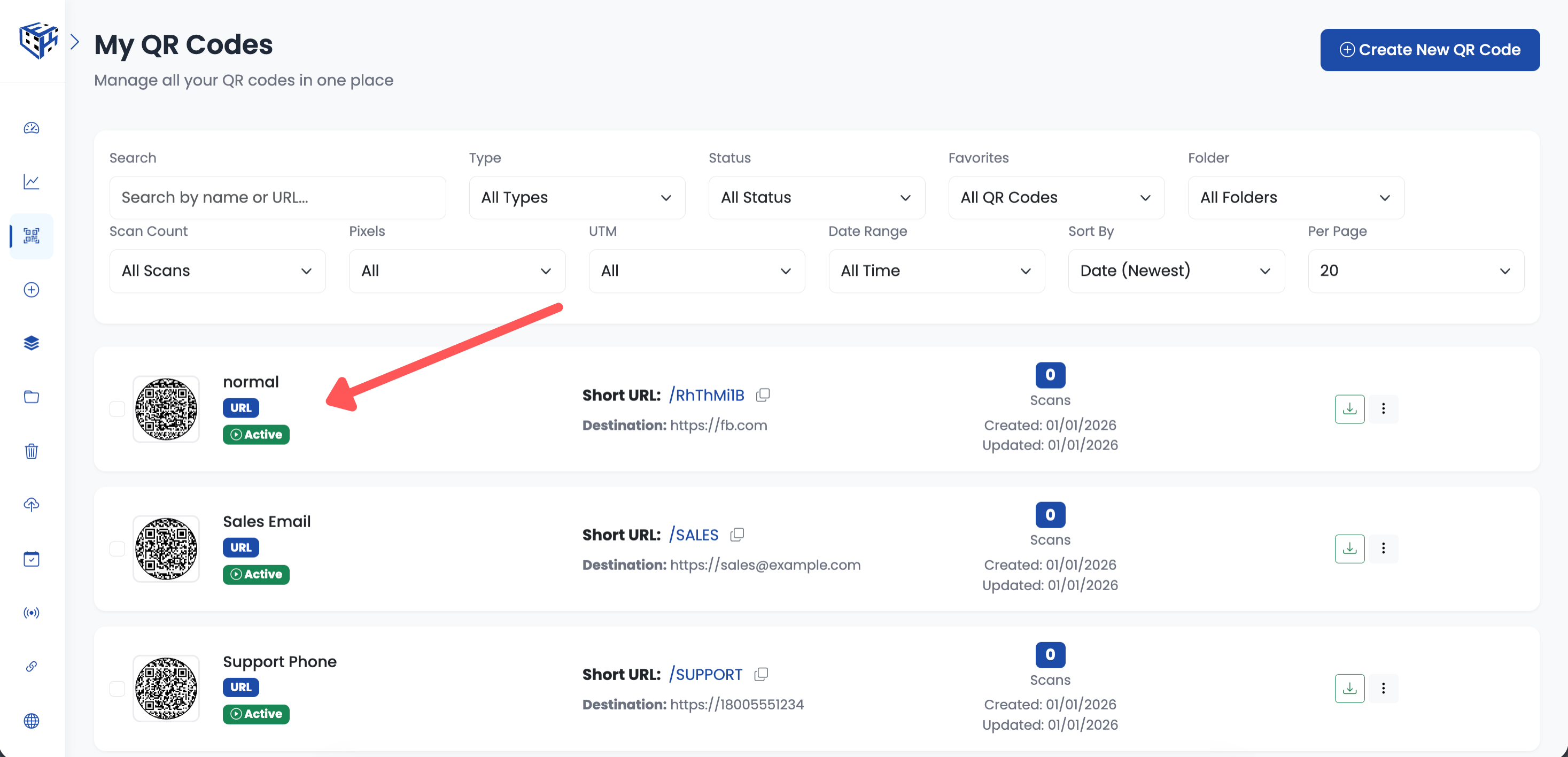
Save to activate password protection
What Visitors See
When someone scans your password-protected QR code, they see a password entry screen. They must enter the correct password to access the content.
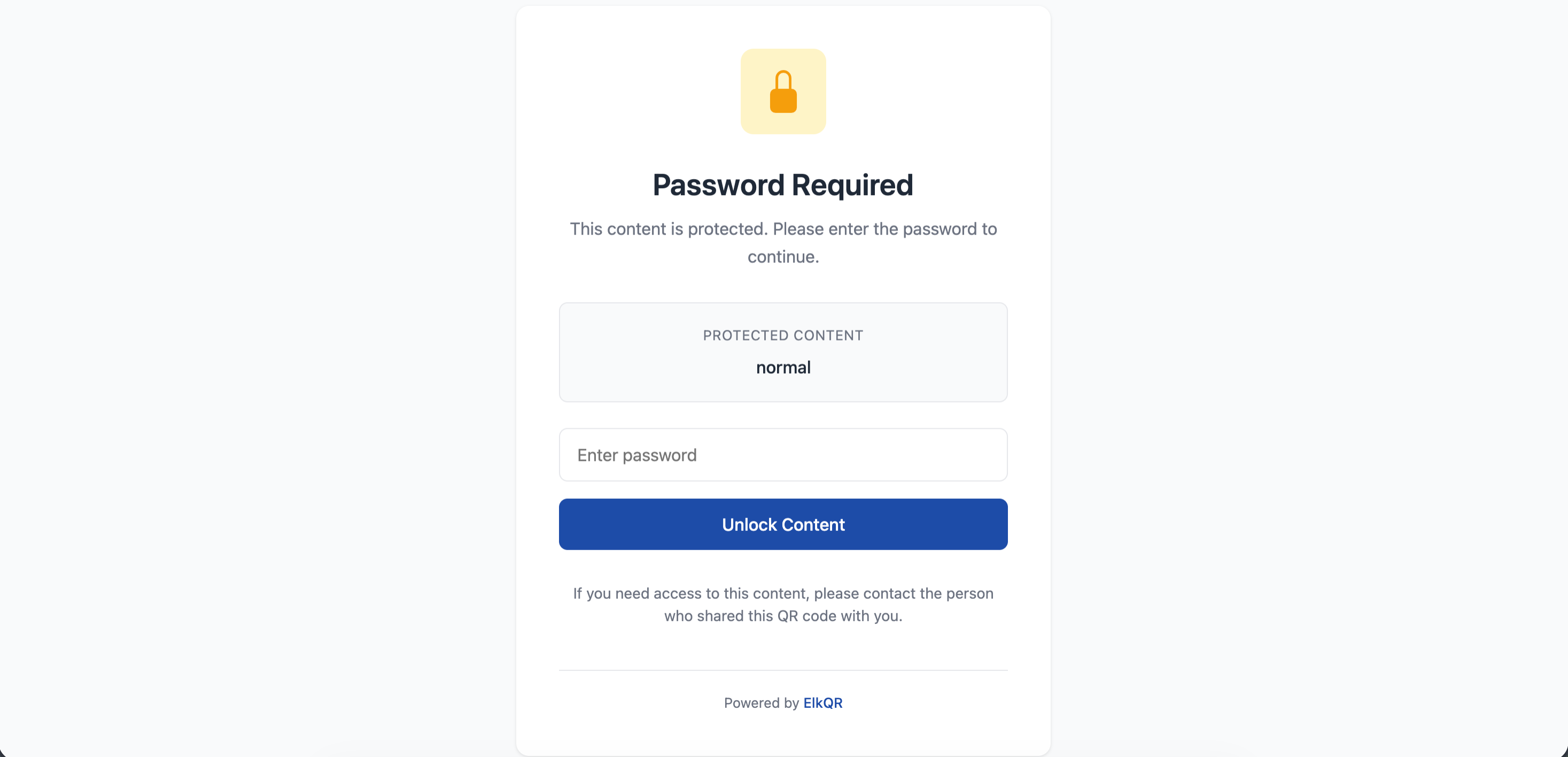
Visitors see this password screen when they scan
Tip
Use memorable passwords like 'VIPCLUB2025' instead of complex ones. People will type them on phones.
Note
You can change or remove the password anytime by editing the QR code.
- Password Protection - Learn more about password protection features
Still facing difficulties?
Click here to contact our support team for assistance