Replace the random short URL with a memorable, branded alias. You can set a custom alias when creating a new QR code or when editing an existing one.
Create or Edit a QR Code
Create a new QR code, or click on an existing QR code from your dashboard to edit it.
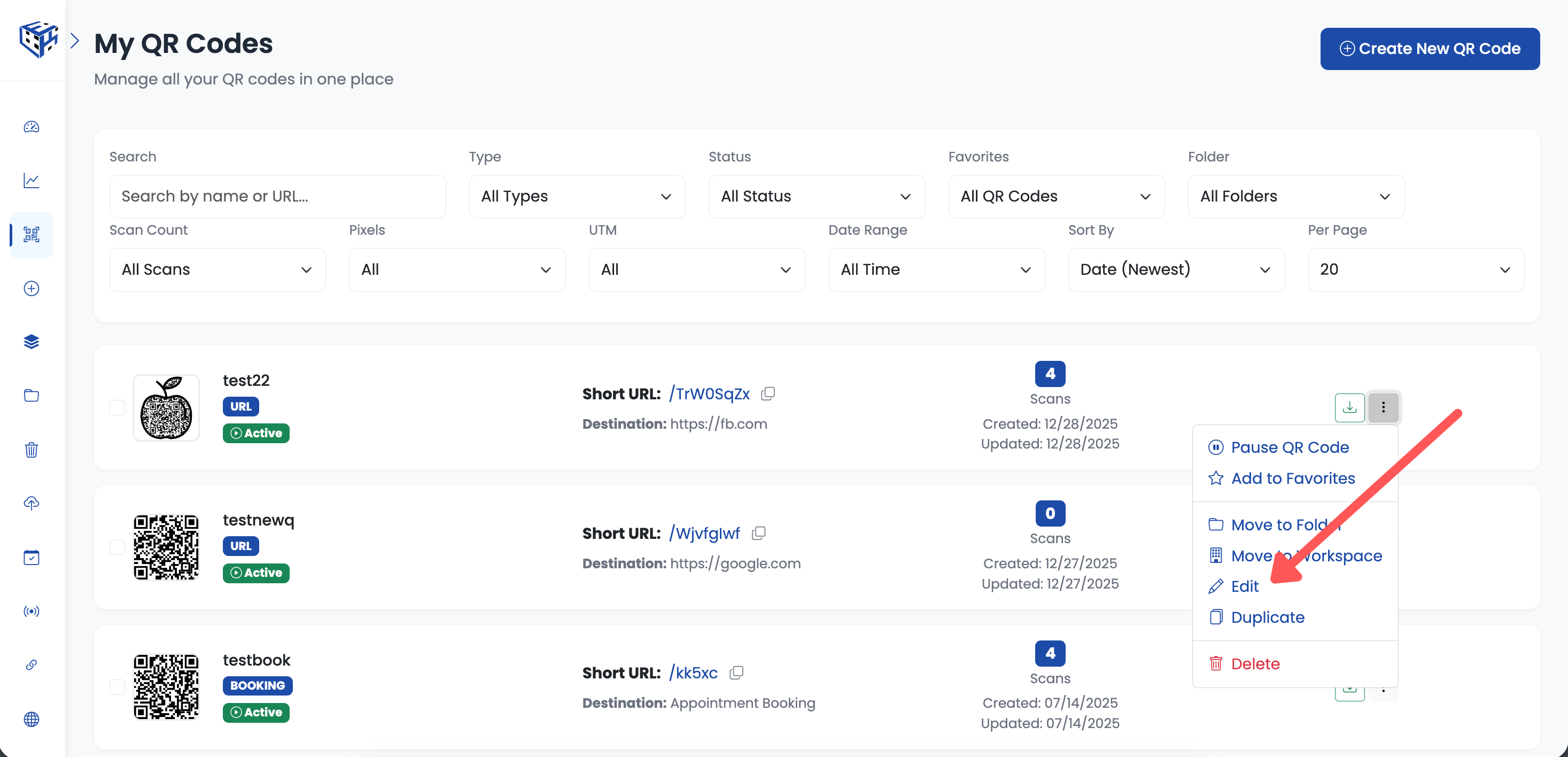
Click on a QR code to edit, or create a new one
Find Custom Alias Field
Look for the "Custom Alias" field in the Advanced Settings section.
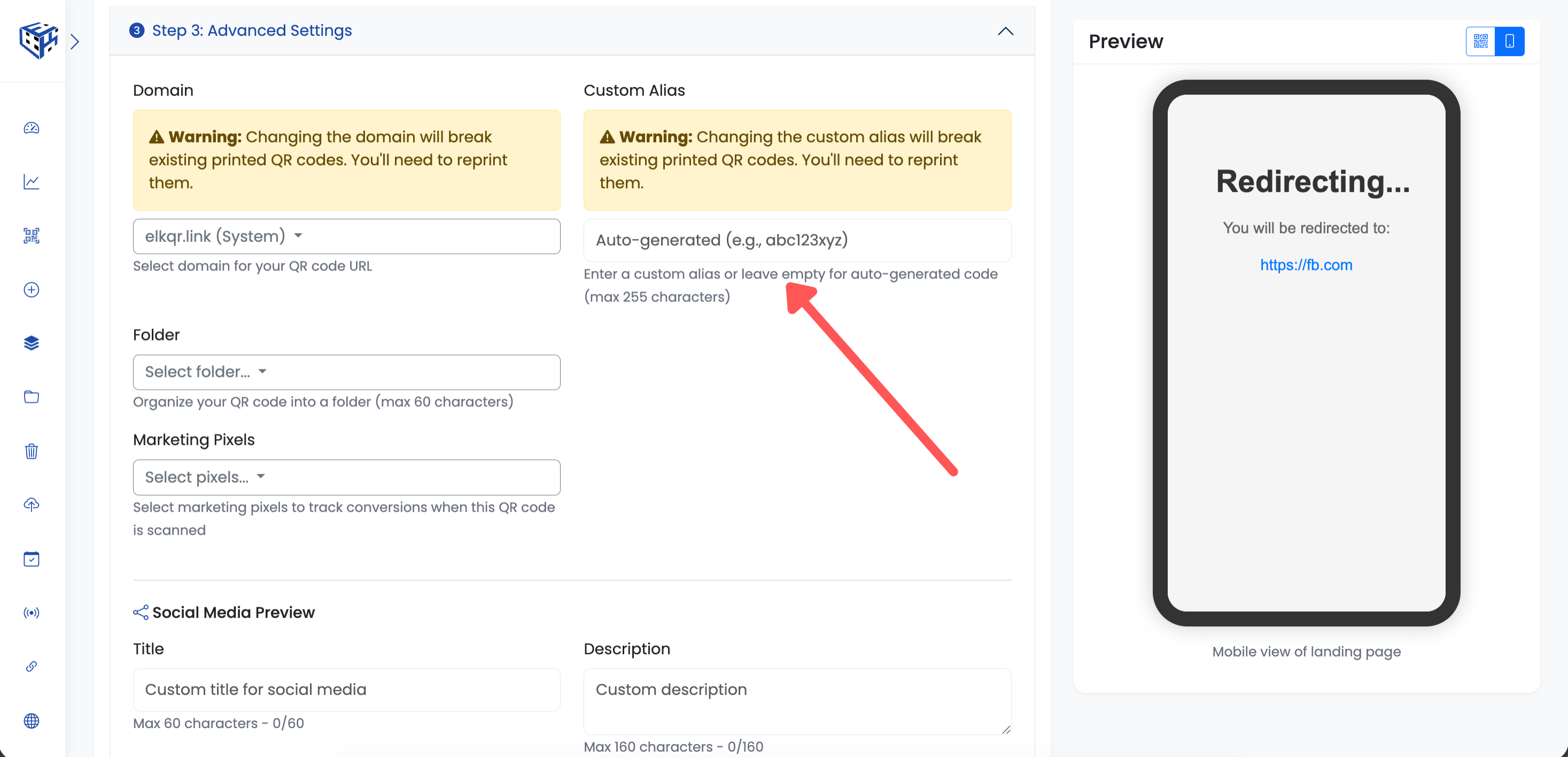
Find Custom Alias in Advanced Settings
Enter Your Alias
Type your desired alias. The system checks availability automatically. If the alias is already taken, try a different one.
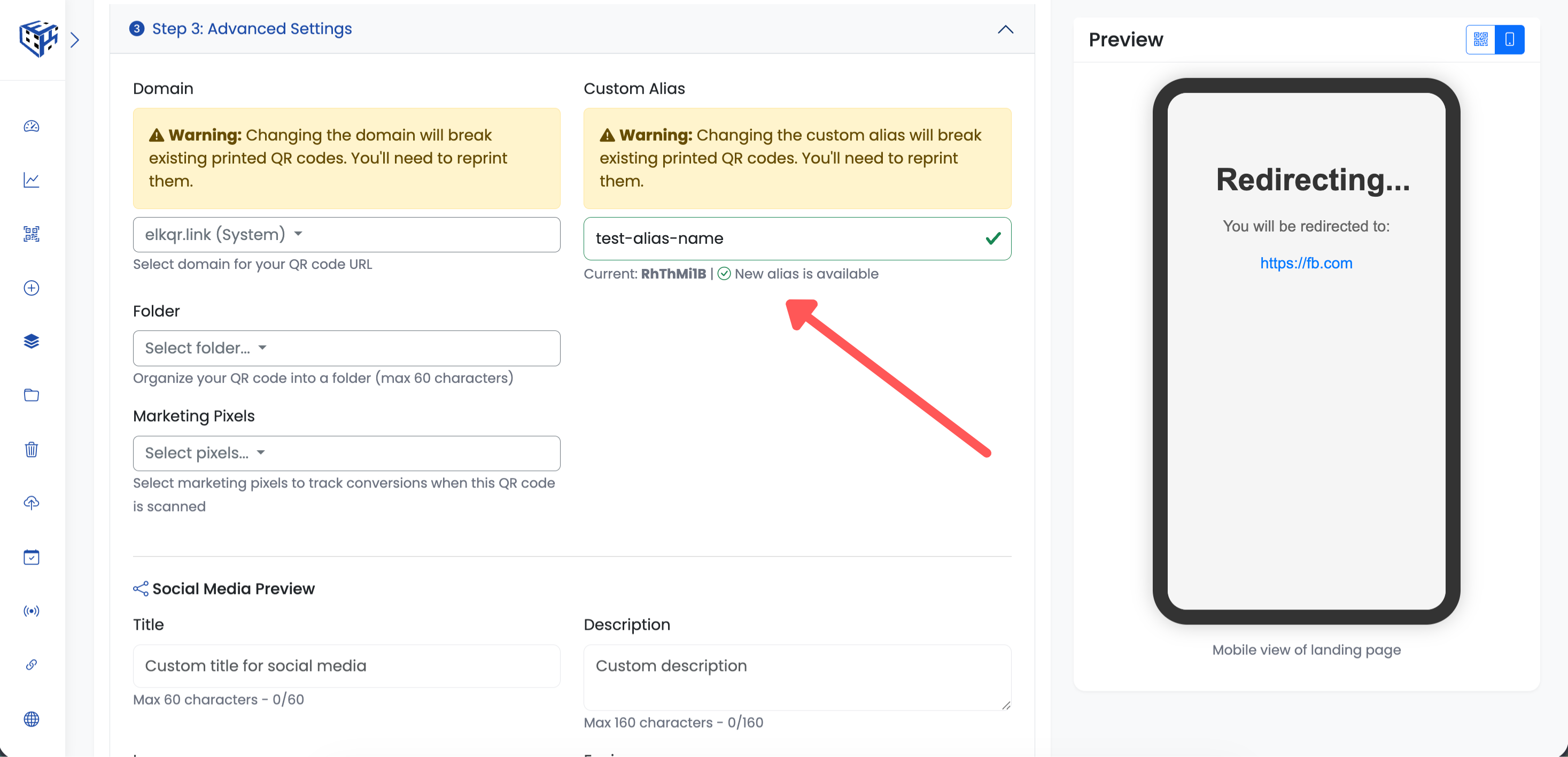
Enter a memorable custom alias
Warning
Changing the alias on an existing QR code changes the QR code pattern. If you already printed QR codes, they will stop working. Set your alias BEFORE printing!
Save Your QR Code
Click "Create QR Code" (for new) or "Update" (for existing) to save your custom alias.
Alias Rules
| Allowed | Example |
|---|---|
| Letters (a-z, A-Z) | SummerSale |
| Numbers (0-9) | sale2025 |
| Hyphens (-) | summer-sale |
| Underscores (_) | summer_sale |
| Max 255 characters | my-company-catalog-2025 |
Result
| Before | After |
|---|---|
| elkqr.link/x7Kp2m | elkqr.link/summer-sale-2025 |
- Custom Alias (Branded Short URLs) - Learn more about custom alias features
Still facing difficulties?
Click here to contact our support team for assistance