Limit how many times your QR code can be scanned. After the limit is reached, it stops working.
Create or Edit a QR Code
Create a new QR code or click the edit button on an existing one.
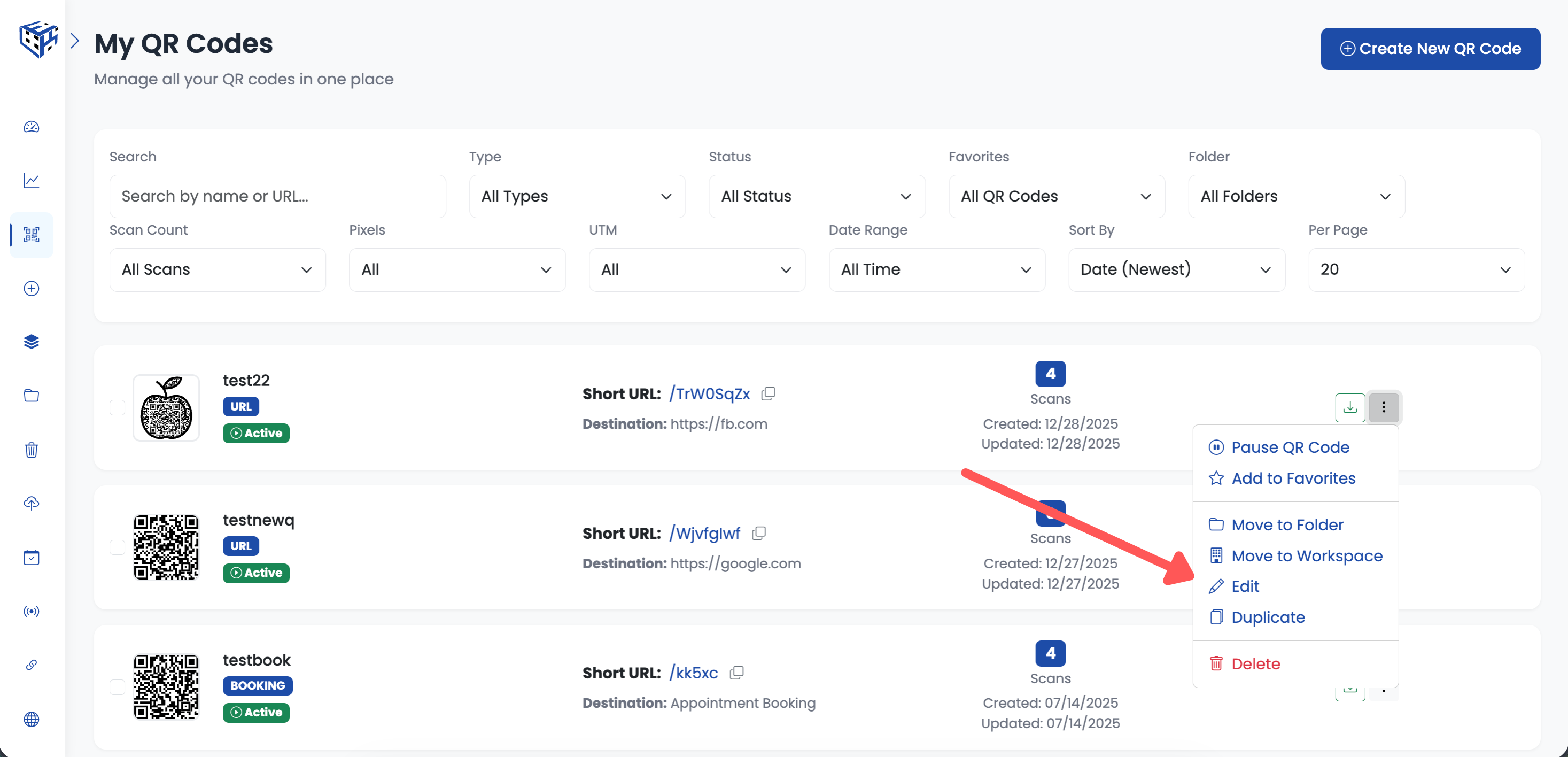
Create new or edit existing QR code
Go to Advanced Settings
Click on the Advanced Settings section to expand it.
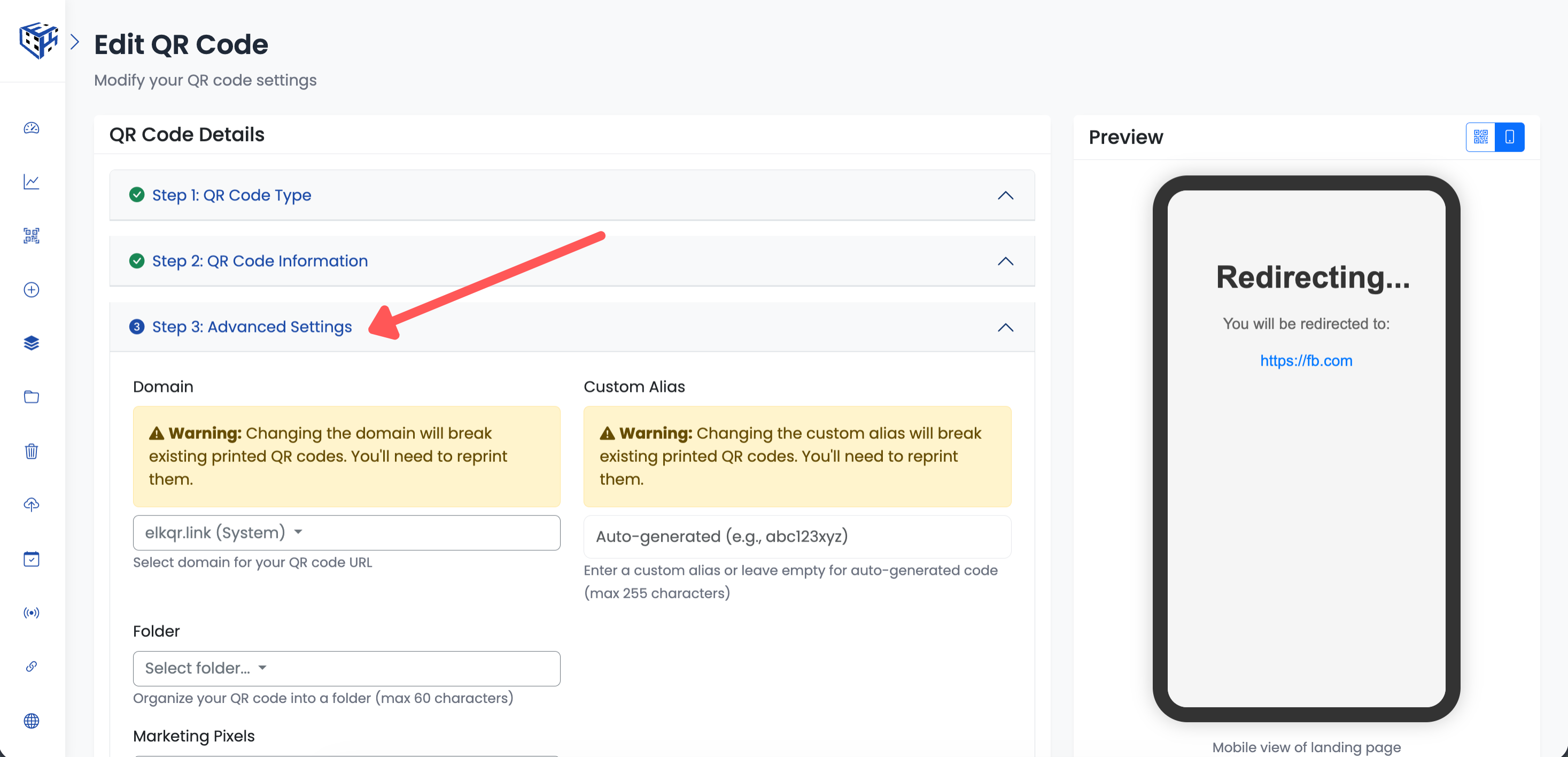
Go to Advanced Settings section
Find One-Time/Limited Scans
Scroll down to find the One-Time/Limited Scans section with an hourglass icon.
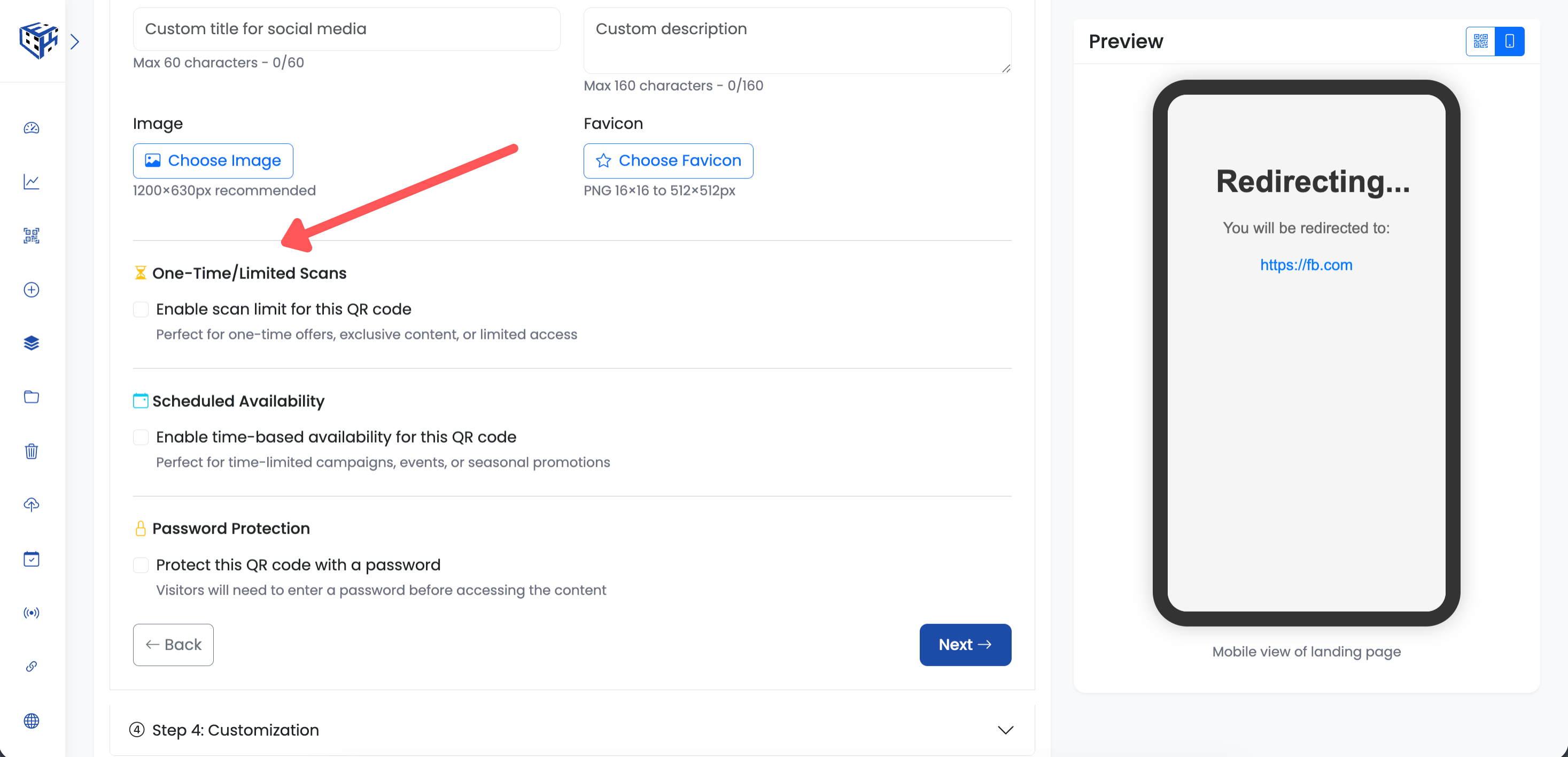
Find the One-Time/Limited Scans section
Enable Scan Limit
Check the box "Enable scan limit for this QR code". The limit field will appear.
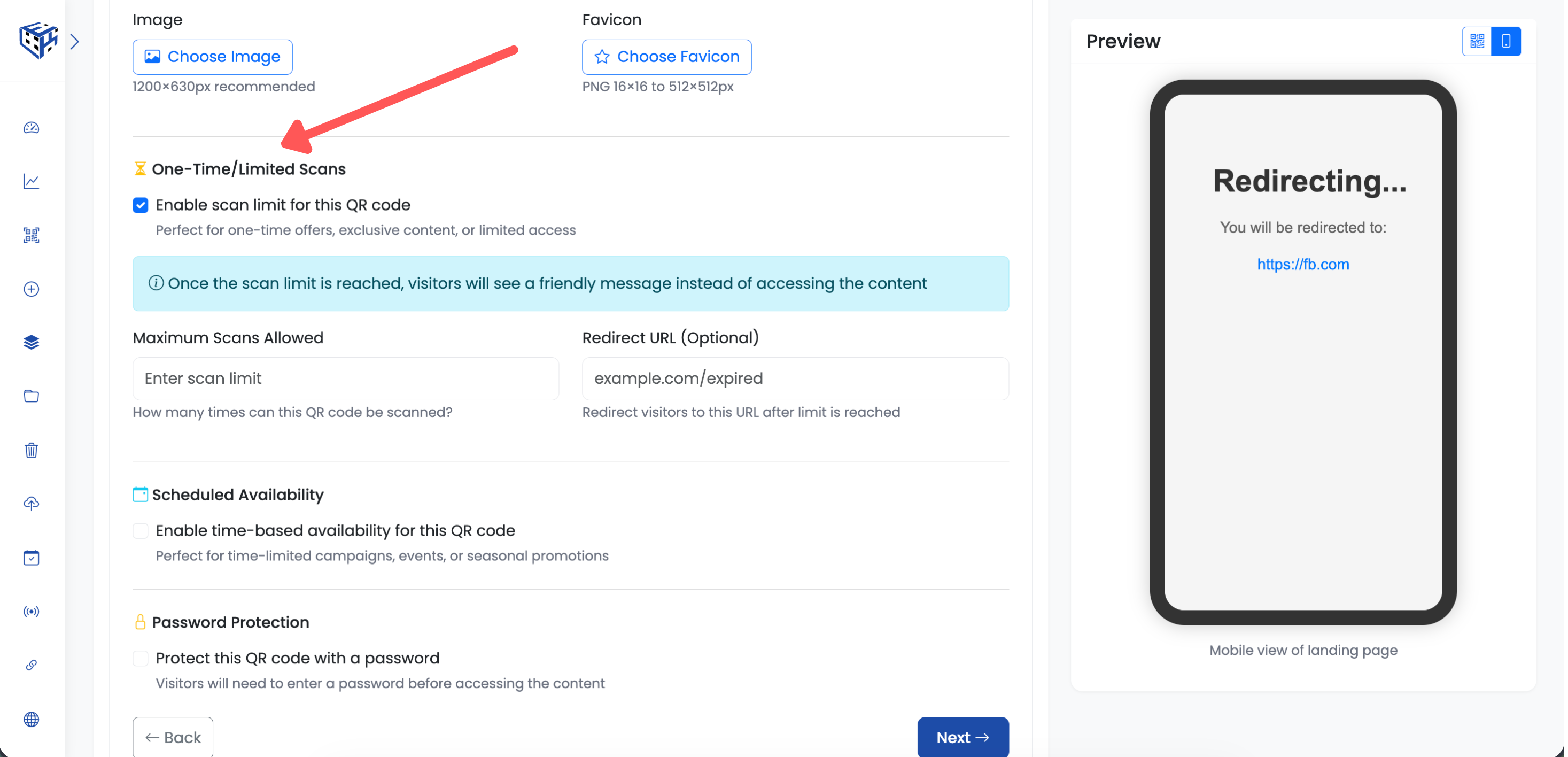
Check the box to enable scan limits
Enter Maximum Scans Allowed
Enter the maximum number of scans allowed. Set to 1 for one-time links, or any number up to 1,000,000.
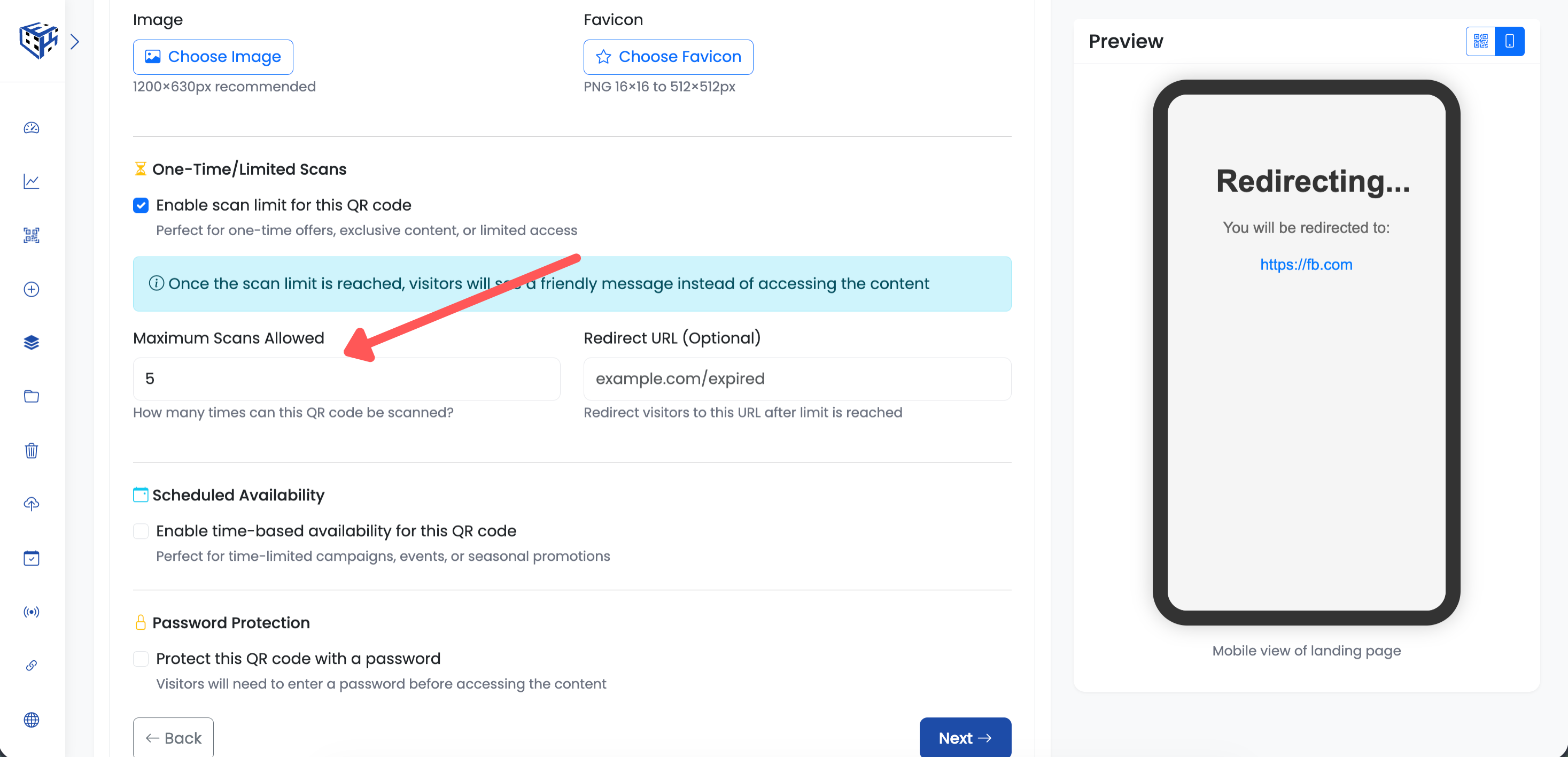
Enter the maximum number of scans
Set Redirect URL (Optional)
Optionally, enter a redirect URL for visitors who scan after the limit is reached. Leave empty to show the default 'Content not available' message.
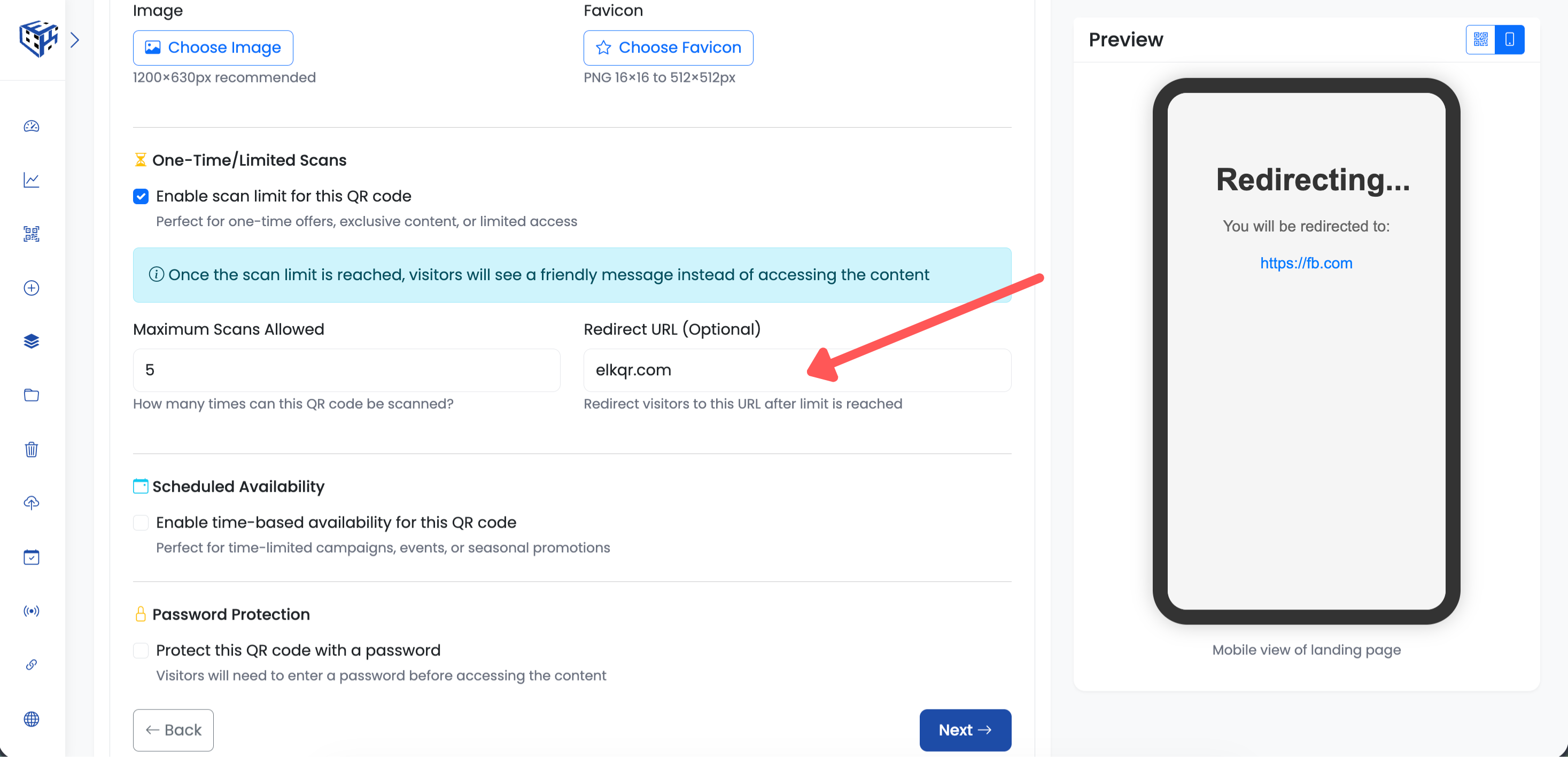
Optional redirect for when limit is reached
Save Your QR Code
Click "Create QR Code" (for new) or "Update" (for existing) to save. Your QR code will automatically stop working after the limit is reached.
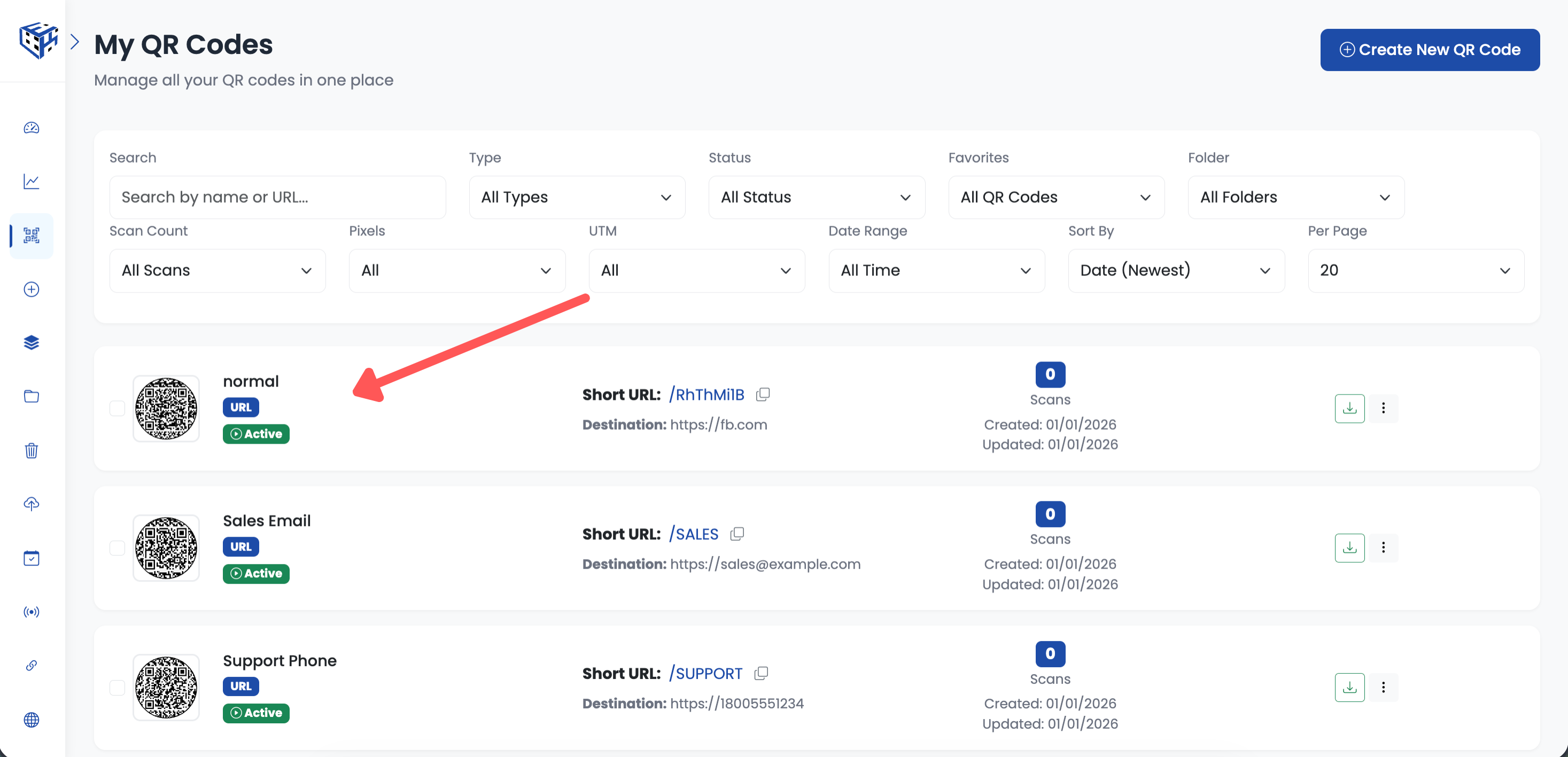
Save to activate scan limits
What Visitors See When Limit Reached
When someone scans after the limit is reached, they see an 'Oops! This Offer Has Expired' page showing your QR code name and that all spots have been claimed. If you set a redirect URL, they'll be sent there instead.
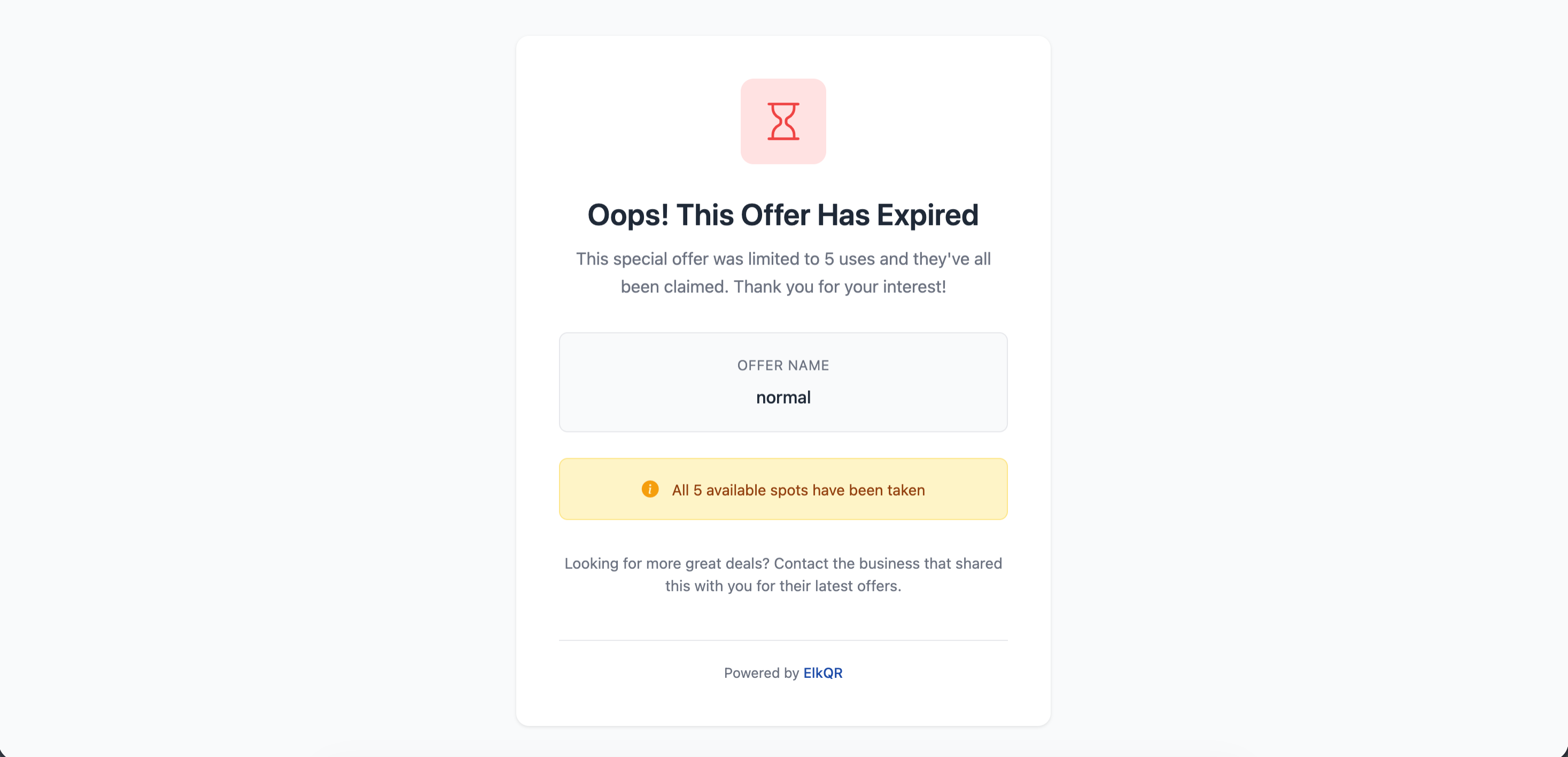
Visitors see this page when scan limit is reached
Warning
Once the limit is reached, you cannot 'unscan'. Set your limit carefully!
- Scan Limits - Learn more about scan limit features
Still facing difficulties?
Click here to contact our support team for assistance