Share your QR code analytics with team members, clients, or stakeholders without requiring them to log in.
Click Scans on QR Code Card
From your dashboard, find the QR code you want to share stats for and click the "Scans" count on the card.
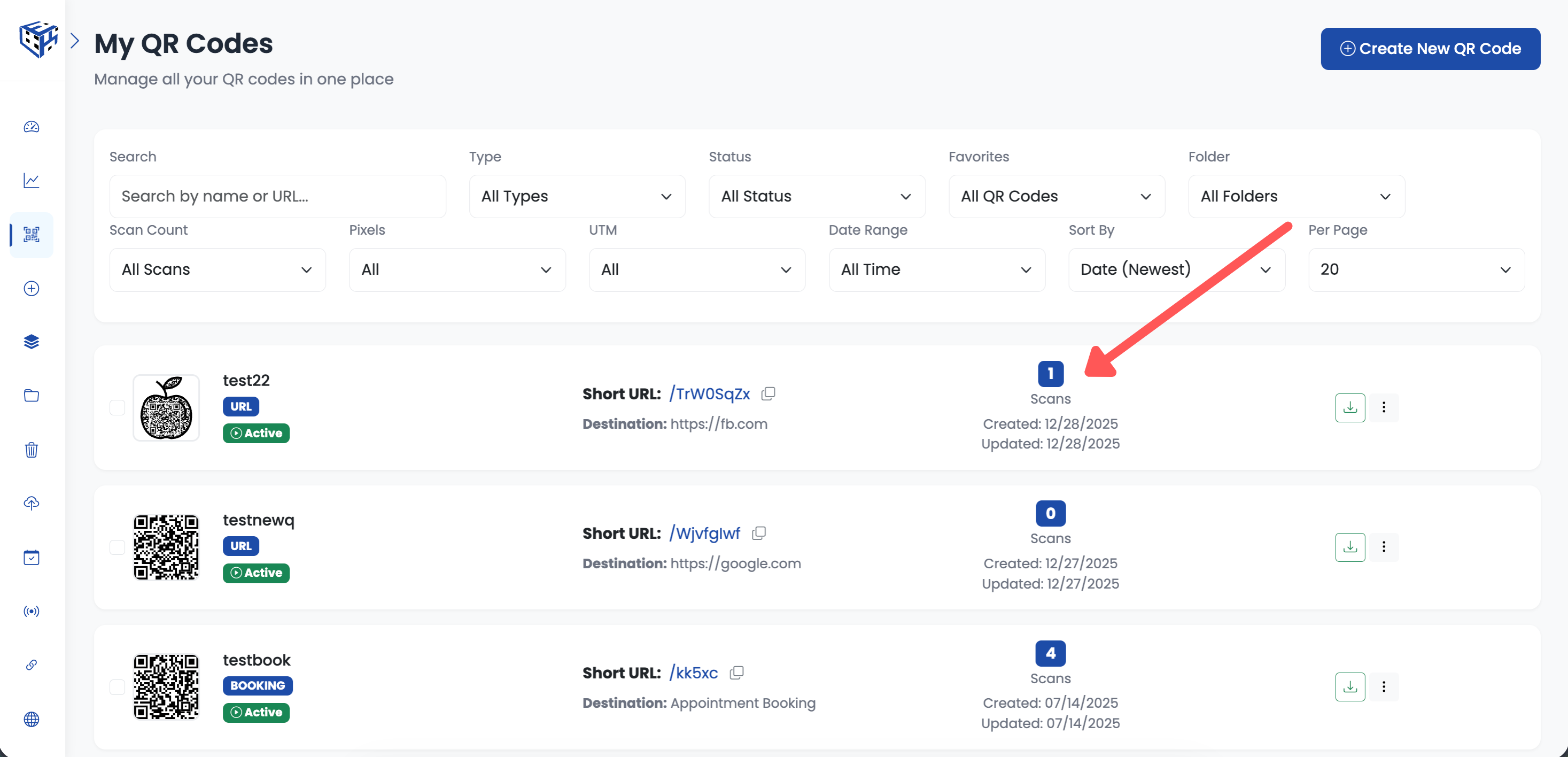
Click the Scans count to view analytics
Click Public Stats Button
In the analytics page, click the "Public Stats" button in the top right area.
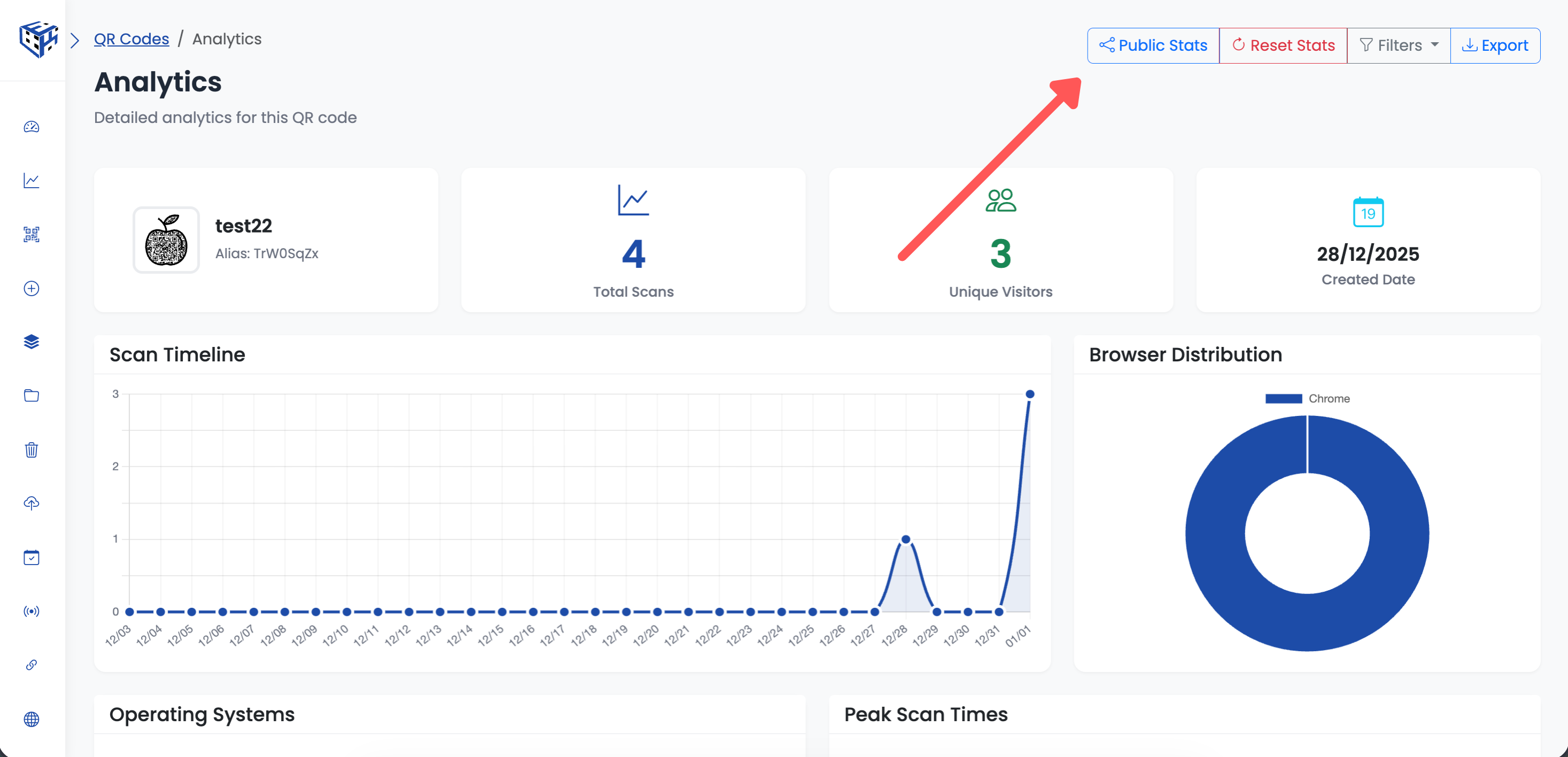
Click the Public Stats button
Enable Public Stats Sharing
Toggle "Enable Public Stats Sharing" ON. A public URL is generated automatically.
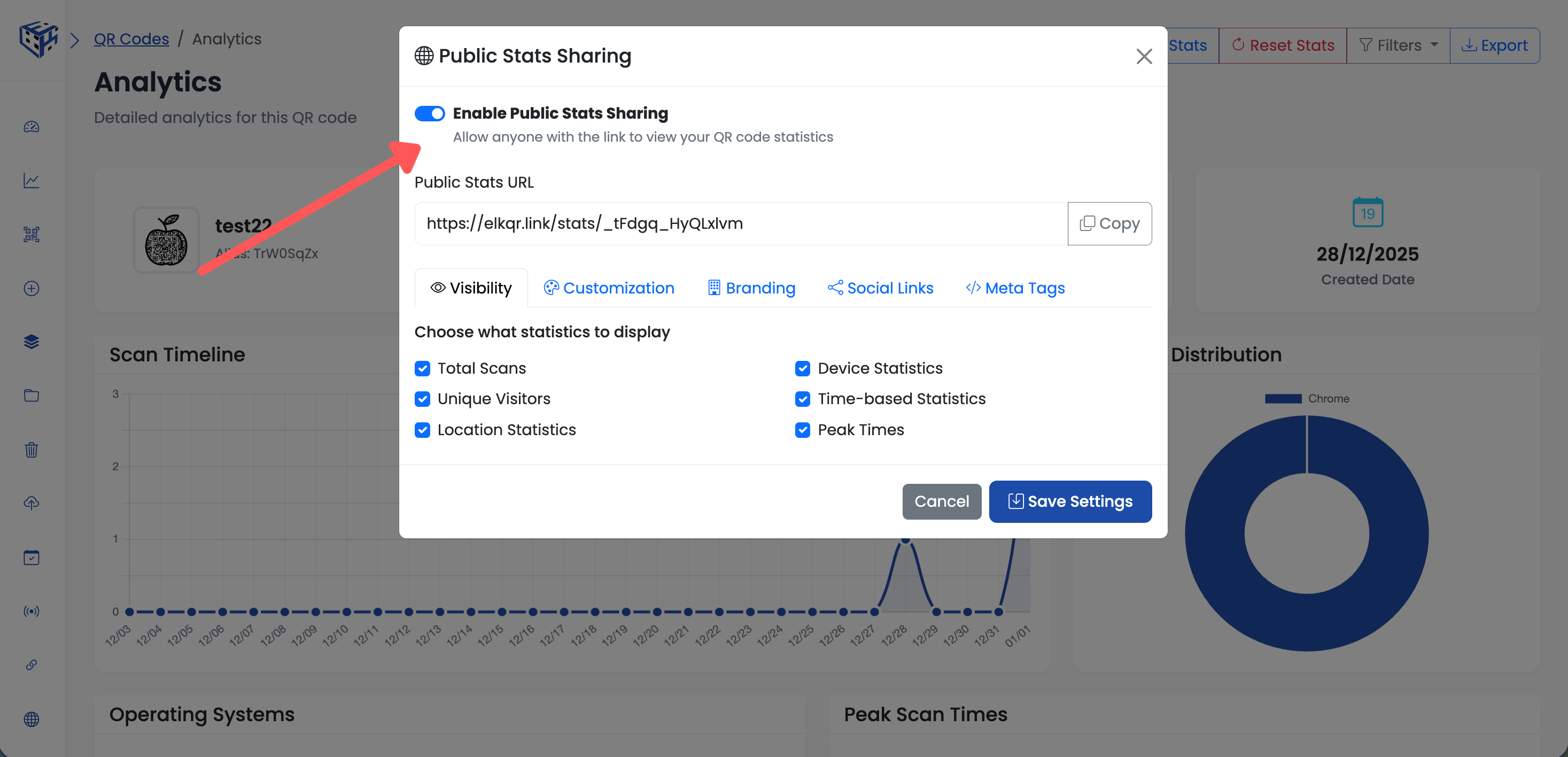
Toggle on to enable public sharing
Choose What to Display
Use the Visibility tab to select which statistics to show publicly:
- Total Scans
- Unique Visitors
- Geographic data
- Scan timeline and trends
- Device and browser breakdown
Customize Your Public Page
Additional customization options are available in tabs:
| Tab | Options |
|---|---|
| Visibility | Choose which stats to show or hide |
| Customization | Customize the page appearance |
| Branding | Add your company branding |
| Social Links | Add social media links |
| Meta Tags | Custom title and description for sharing |
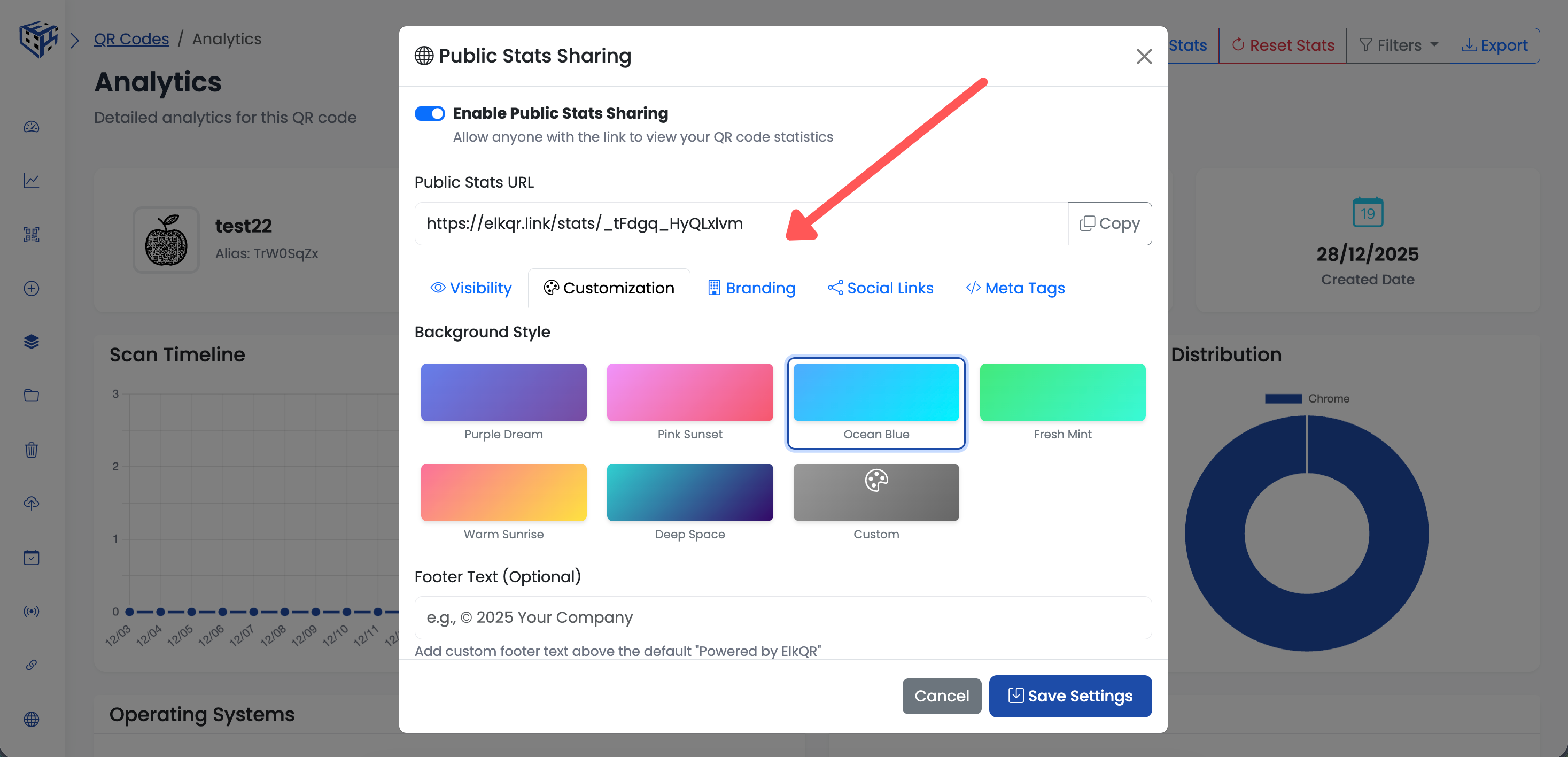
Customize your public stats page
Copy & Share the Link
Click "Copy" next to the Public Stats URL and share it with anyone.
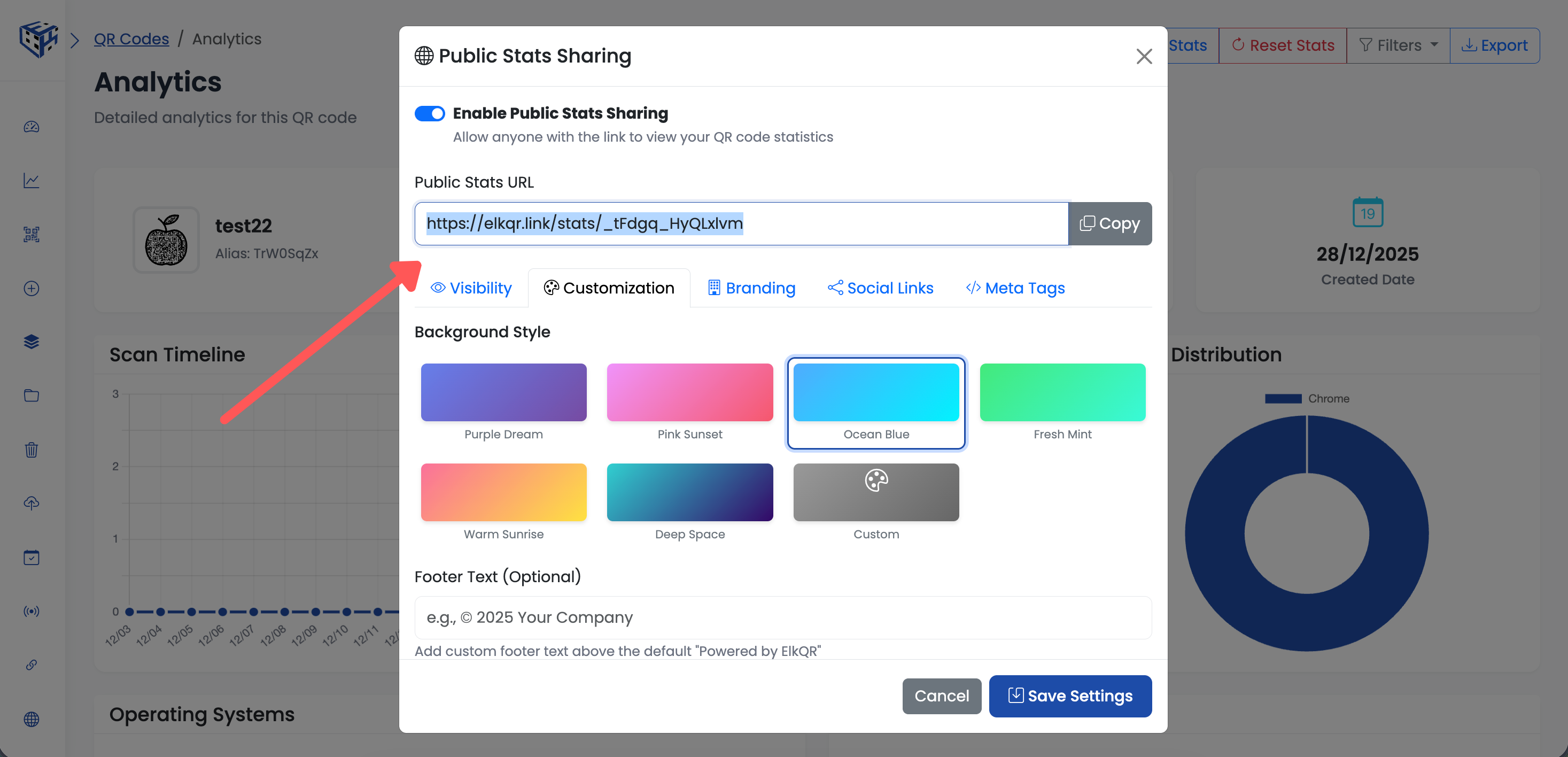
Copy and share the public stats link
Disable Sharing
Toggle "Enable Public Stats Sharing" OFF to deactivate the link immediately.
Note
The public link becomes inaccessible instantly when disabled. Anyone trying to access it will see an error.
Still facing difficulties?
Click here to contact our support team for assistance