Your designer just got promoted to project manager and needs full editing access. Your contractor finished their project and should lose access today. Your client's marketing director changed and needs their analytics-only login transferred. Team management isn't set-and-forget - people change roles, projects end, and permissions need updating. Here's how to keep your team access current.
Editing Team Member Permissions
Open Workspace Settings
Click Settings in the sidebar (under the Workspace section).
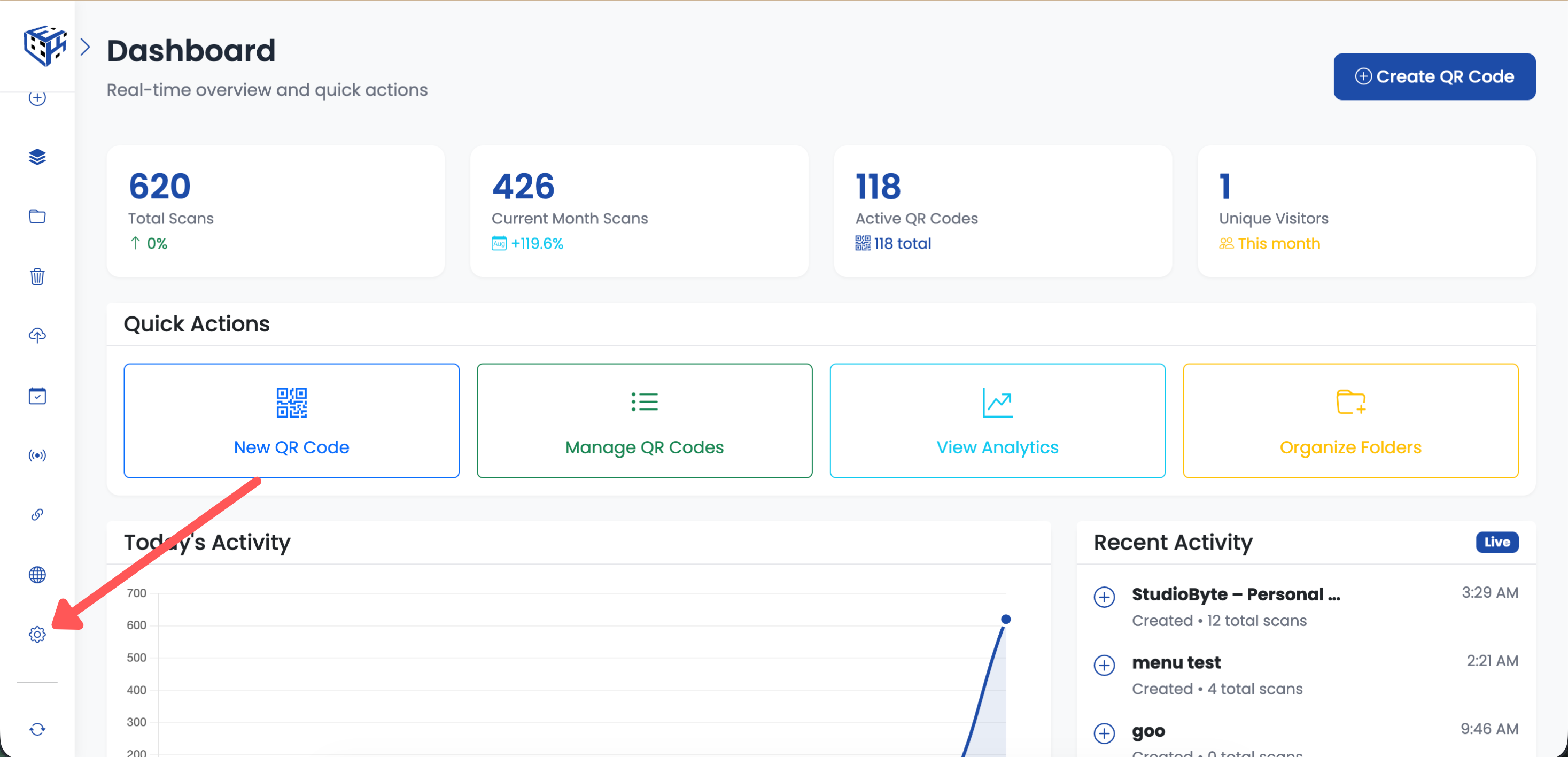
Click Settings in the sidebar
Go to Team Tab
Click the Team tab to see your current team members.
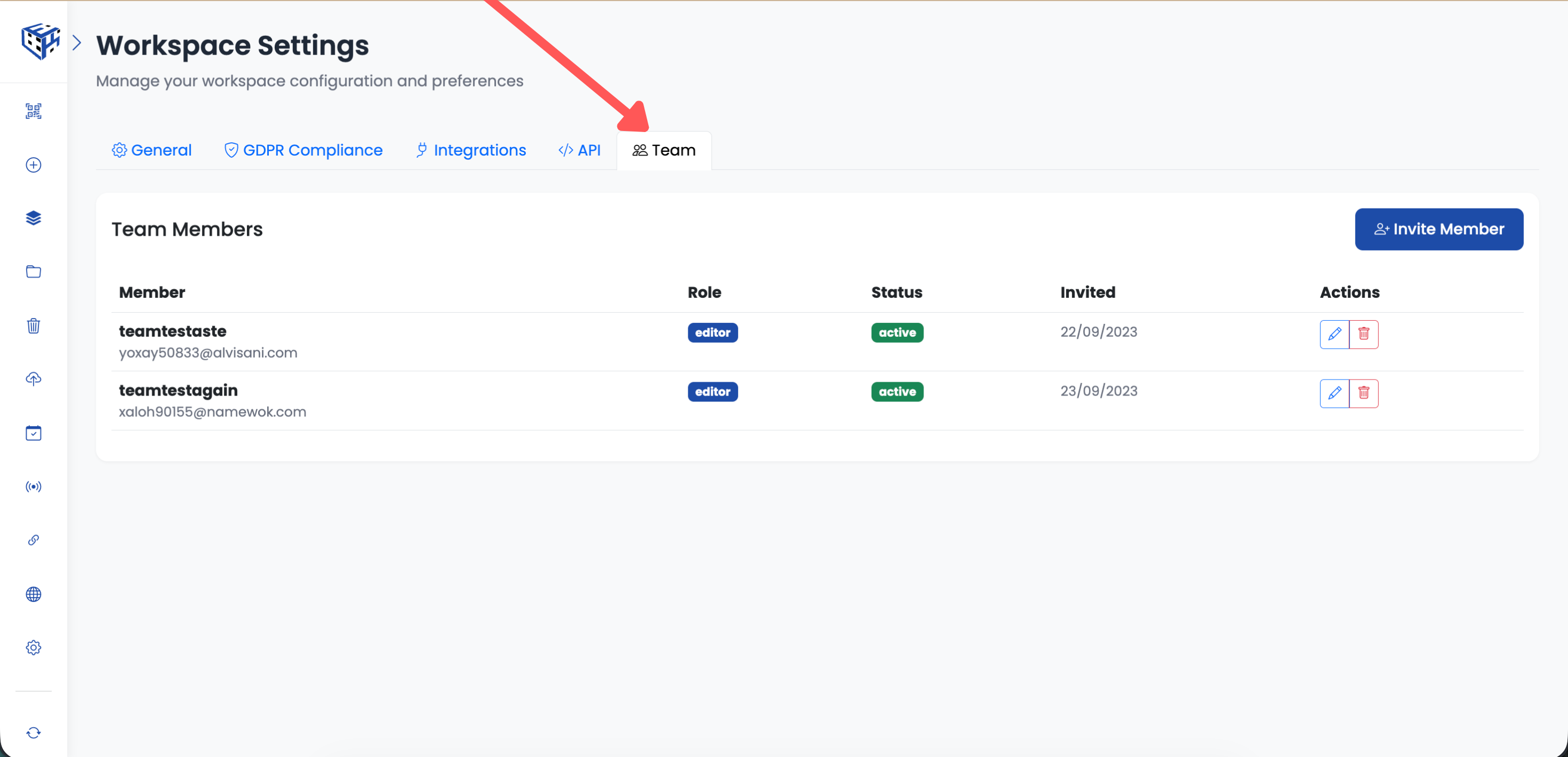
Click the Team tab
Click the Pencil Icon to Edit
Find the team member in the list and click the pencil icon in the Actions column to open their permissions.
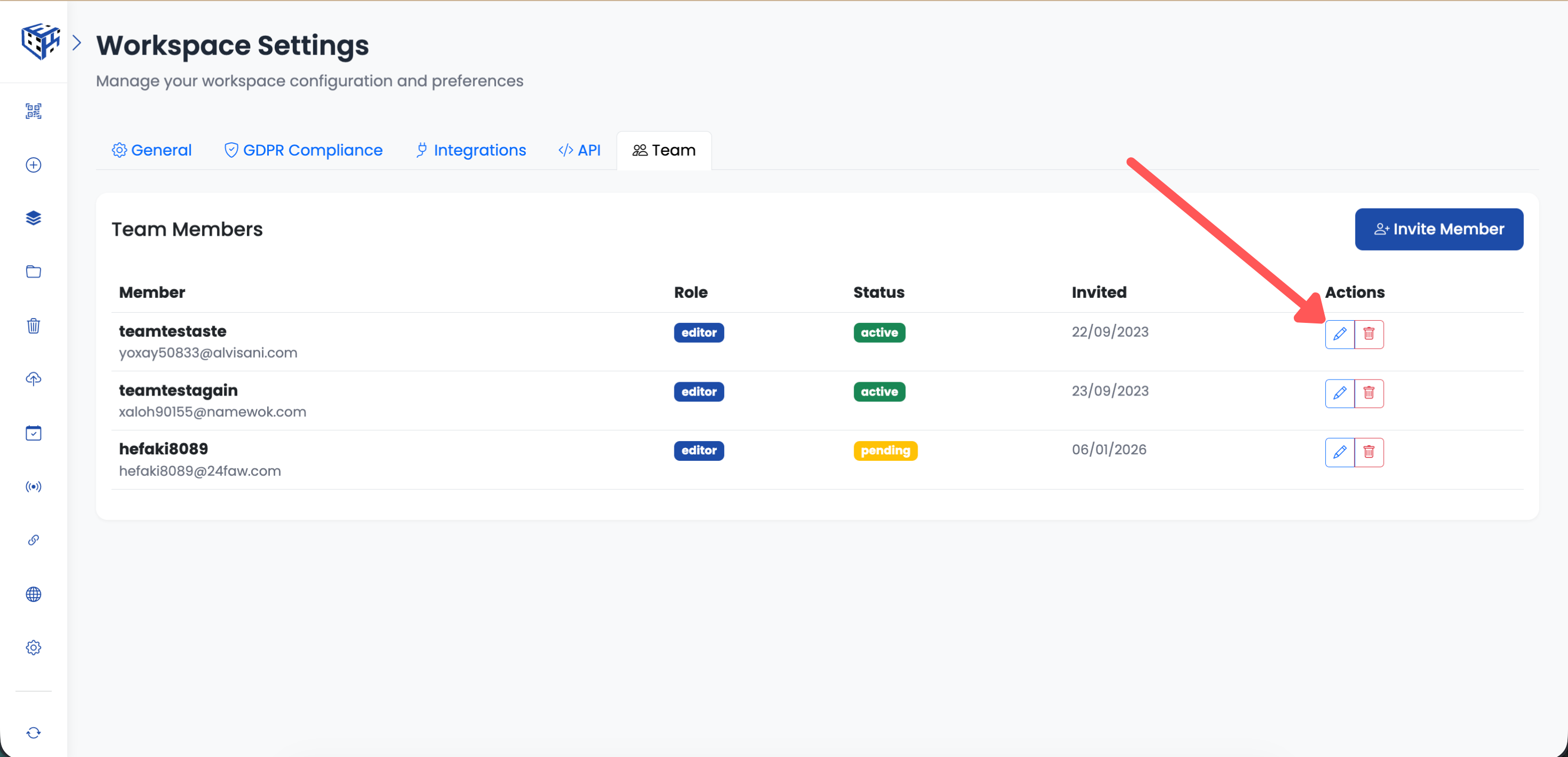
Click the pencil icon to edit permissions
Update and Save
Change their role, access level, or additional permissions. Click Update Permissions. Changes take effect immediately.
Removing Team Members
To remove a team member, follow Steps 1-2 above to get to the Team tab, then:
Click the Trash Icon
Find the team member in the list and click the trash icon in the Actions column.
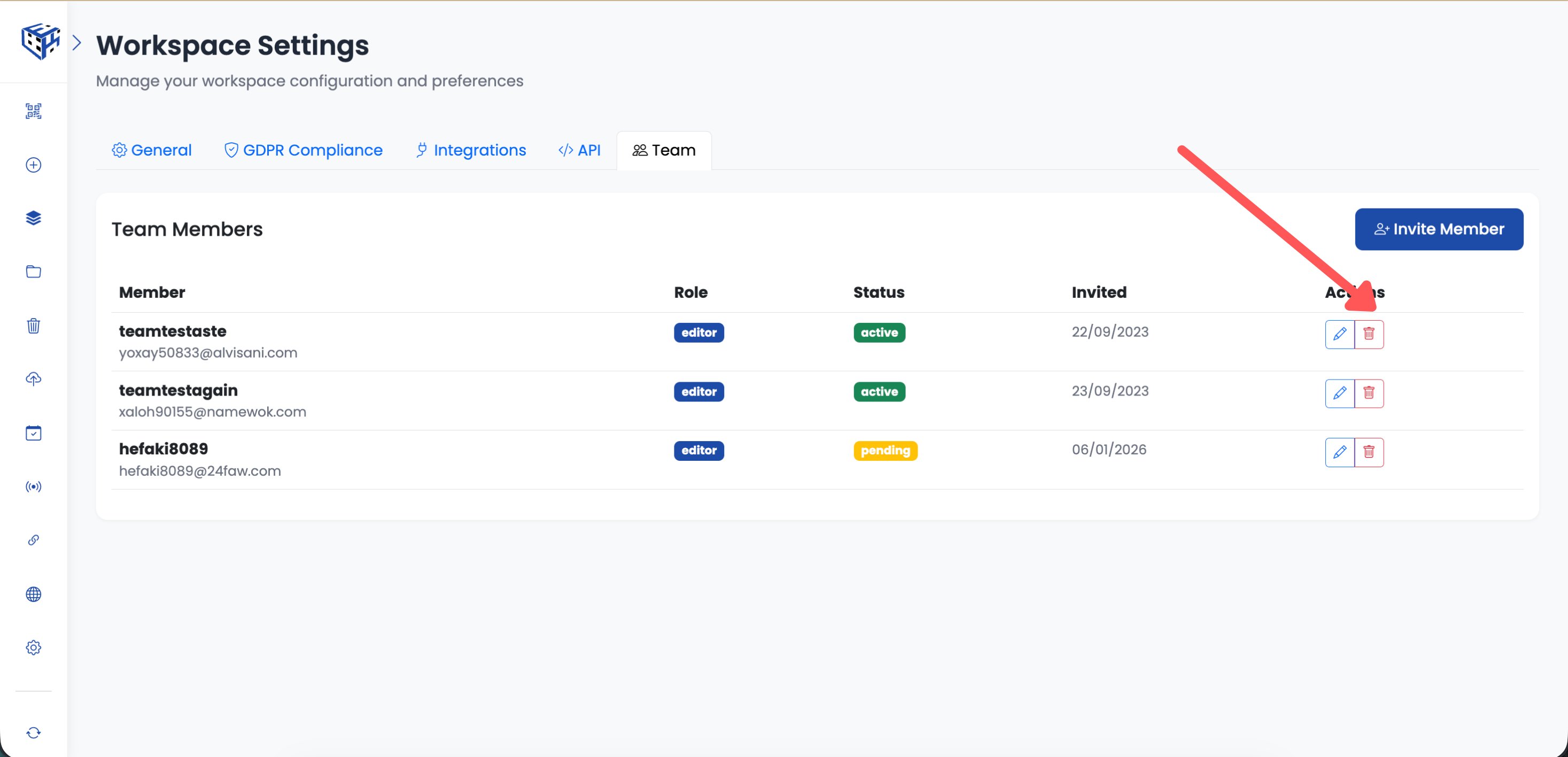
Click the trash icon to remove
Confirm Removal
A confirmation dialog will appear. Click Yes, remove to confirm. They lose access immediately.
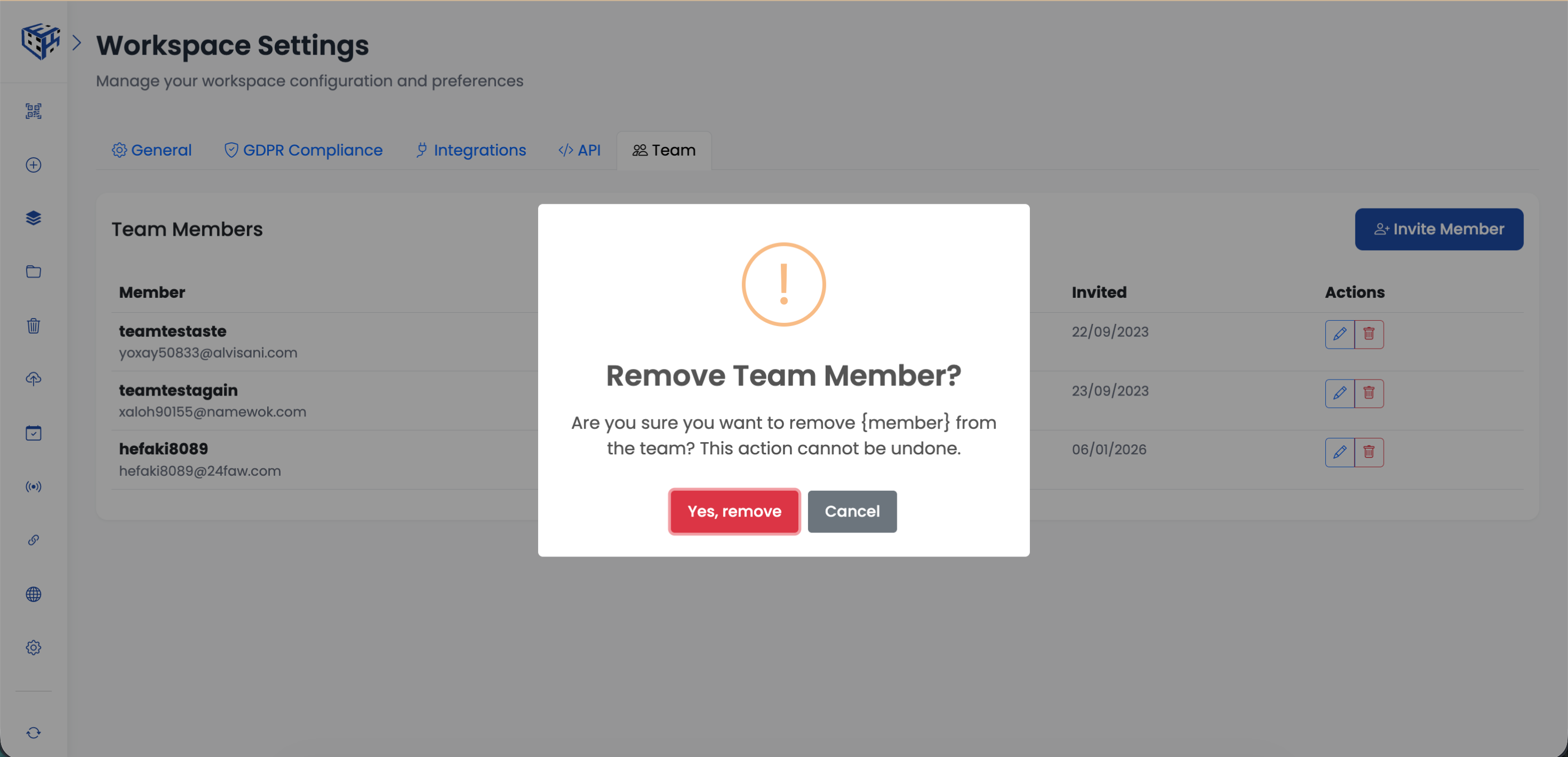
Click Yes, remove to confirm
What Happens When Removed
| Item | What Happens |
|---|---|
| Access | Revoked immediately - they can no longer log in to this workspace |
| QR codes they created | Remain in workspace - nothing is deleted |
| Their edits | Remain unchanged - all changes they made stay |
| Activity logs | Their actions remain visible in activity history |
Managing Pending Invitations
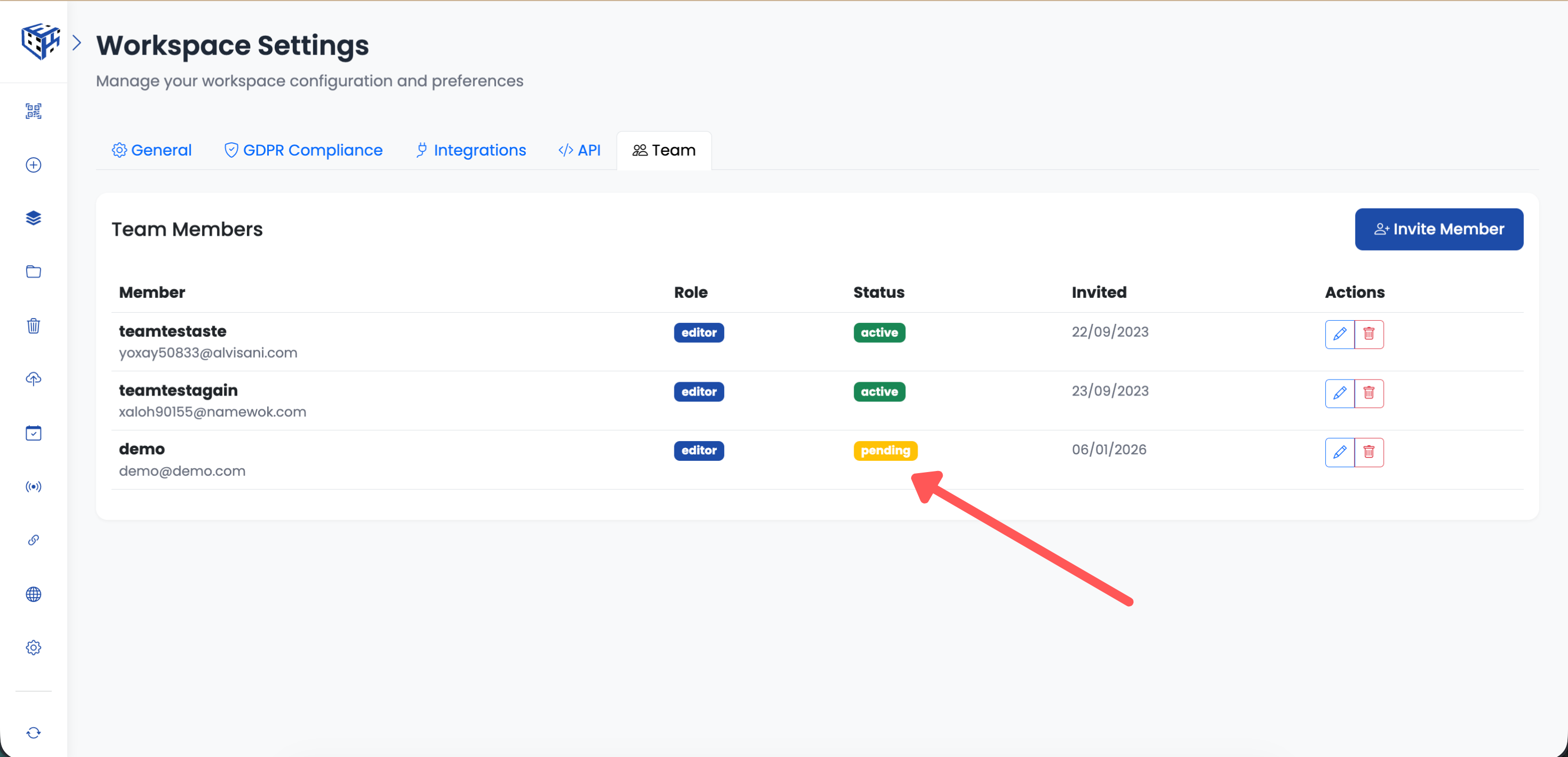
Managing Pending Invitations
Pending invitations appear in the team list with a "pending" status. If someone didn't receive the invitation, you can remove their pending invitation and invite them again with the correct email.
Tip
When an employee leaves your company, remove them from all workspaces they had access to - not just one.
Still facing difficulties?
Click here to contact our support team for assistance