Make QR Codes by Just Asking
It's 9 PM, your Black Friday sale starts tomorrow, and you still need three coupon QR codes, a WiFi QR for the shop and new colours on your menu QR. Instead of clicking through every form, you type one sentence into your AI assistant: "Create three coupons, 10%, 20% and 30% off, expiring 30 November, in red with a Scan Me frame." A few seconds later all three are in your ElkQR workspace, with the QR images right in the chat.
That's what ElkQR MCP does. MCP (Model Context Protocol) is the standard way AI assistants connect to apps. Once connected, your assistant can create, edit, find and track QR codes in your ElkQR workspace for you.
Warning
Works with Claude Code. The Claude mobile app and claude.ai connectors are not supported yet.
Without vs With ElkQR MCP
| Task | Without MCP | With MCP |
|---|---|---|
| Create 3 coupon QR codes | Fill the form three times | One sentence in your assistant |
| Change a link or discount | Find the QR, open the editor, save | "Change BF50 to 60% off" |
| Check scans for several QR codes | Open each analytics page | "Which coupon got the most scans this week?" |
| Find a QR code | Scroll and search the list | "Find the WiFi QR for CafeGuest" |
What Your Assistant Can Do
| Action | Details |
|---|---|
| Create QR codes | Website, Static, vCard Plus, WiFi, Multi-Link, Coupon and App QR codes, with the QR image returned in the chat |
| Edit QR codes | Change names, links, content and design. Printed QR codes keep working. Static QR codes cannot be edited |
| Design | Colours, shapes, patterns, corner styles and sticker frames. Your assistant warns you when a colour or style may be hard to scan |
| Find QR codes | Search by name, link, email address, WiFi network or coupon code |
| Scan statistics | Total and unique scans, scans per day, top countries, cities and devices, for one or several QR codes at once |
| Download | PNG, SVG, JPG or WebP in 512, 1024, 2048 or 4096 px |
Tip
Your assistant cannot delete QR codes through MCP. Deleting is only possible in your ElkQR dashboard.
Create an API Key
Your assistant connects with an API key from your workspace. Only the workspace owner can create API keys. Click Settings in the sidebar, open the API tab and click Create API Key. Give the key a name such as "Claude" and choose its permissions:
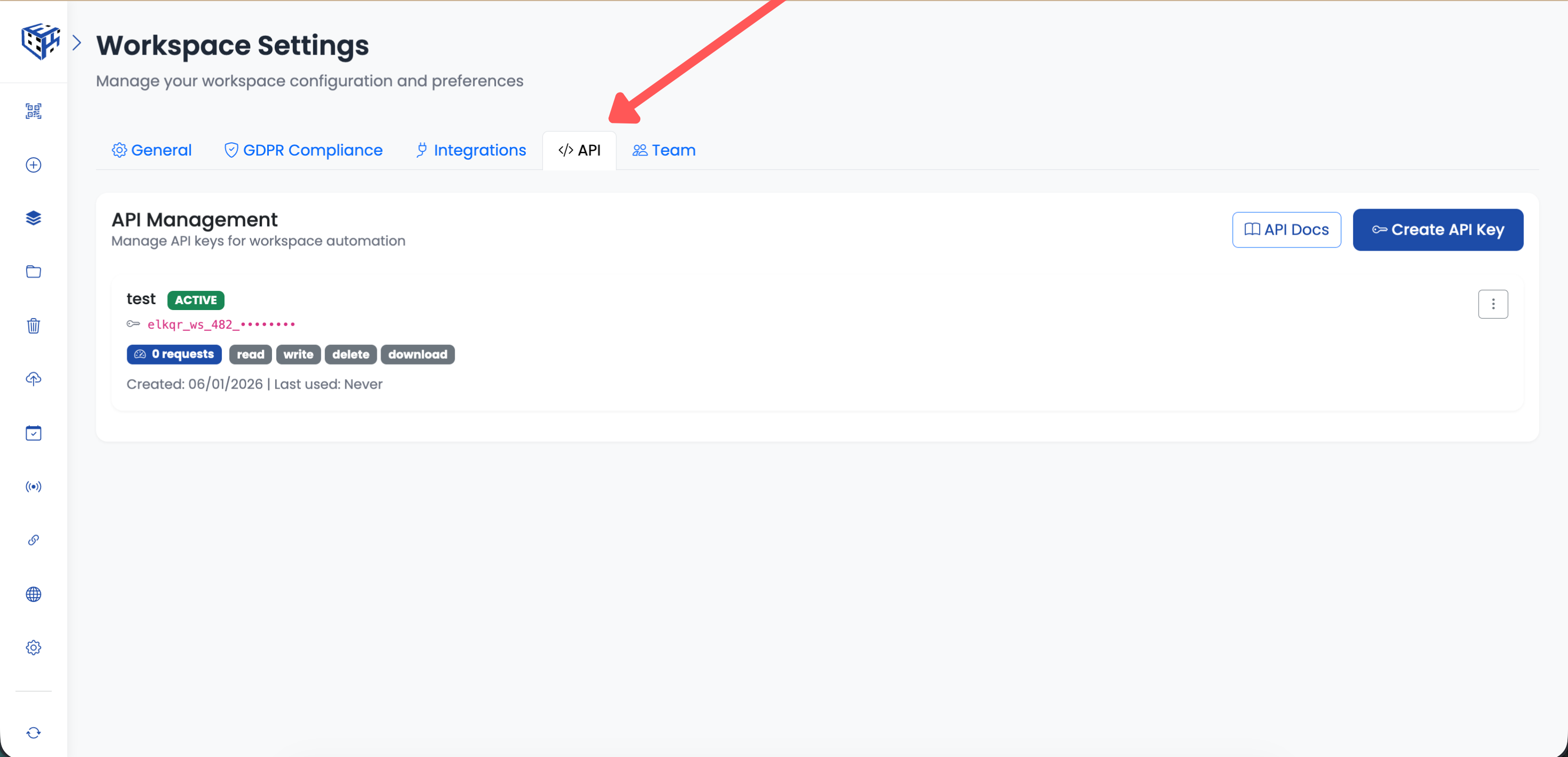
API Tab
| Permission | Needed for MCP? | Why |
|---|---|---|
| Read (required) | Yes | Always on. Lets your assistant list QR codes and read statistics |
| Write (Create/Update) | Yes | Lets your assistant create and edit QR codes |
| Download (QR Images) | Yes | Lets your assistant show and download QR images |
| Delete (Remove) | No | Not used by MCP. Leave it off |
Warning
Copy your API key as soon as it is created and keep it private. Anyone with the key can create and edit QR codes in that workspace. If a key is ever shared by mistake, delete it in the API tab and create a new one.
Connect Claude Code
In your terminal, run this command and replace YOUR_API_KEY with the key you just created:
claude mcp add --transport http elkqr https://mcp.elkqr.com/mcp --header "Authorization: Bearer YOUR_API_KEY"Then start Claude Code and type /mcp. You should see elkqr listed as connected. Now just ask, for example: "Make a WiFi QR for my café, network CafeGuest, password coffee123, in blue."
Connect Other AI Apps
Any AI app that supports remote MCP servers with custom headers can connect to ElkQR. Use these settings:
| Setting | Value |
|---|---|
| Server URL | https://mcp.elkqr.com/mcp |
| Transport | HTTP (Streamable HTTP) |
| Header | Authorization: Bearer YOUR_API_KEY |
Documentation
You never need to call these tools yourself — your assistant picks the right one from what you type. The names are listed so you recognise them when your assistant asks for permission to use them.
| Tool | What it does |
|---|---|
| list_qr_types | Shows the QR code types your assistant can create and the details each one needs |
| create_qr | Creates one QR code in your workspace and returns its scan link and QR image |
| update_qr | Changes an existing QR code (name, link, content or design). Only the details you mention change |
| list_qrs | Finds QR codes by name, link, email address, WiFi network or coupon code |
| get_qr | Shows all details of one QR code |
| get_qr_stats | Shows scan statistics for one or up to 10 QR codes at once |
| download_qr | Gives a download link (valid for 24 hours) in PNG, SVG, JPG or WebP |
| get_qr_type_fields | Lists advanced optional fields for a QR code type |
Supported QR Code Types
| Type | What to tell your assistant |
|---|---|
| Website | The full link. Also works for phone calls (tel:), SMS, email, WhatsApp and Telegram links. The link can be changed later |
| Static | The website, text, phone number, email, SMS, WhatsApp number or Telegram username to encode. Works forever but cannot be edited or tracked |
| vCard Plus | First name, last name and company (required), plus title like Dr. or Mr., job title, phones, emails, websites, address, social profiles and a short bio |
| WiFi | Network name, security (WPA, WEP or none) and password. Optional business name, welcome message and terms |
| Multi-Link | Page title and your links (full https:// links), plus optional social icons and description |
| Coupon | Coupon code, discount and title. Optional description, terms, expiry date and a shop button with link |
| App | App name and at least one store link (App Store, Google Play, APK or website). iPhone users go to the App Store, Android users to Google Play |
Examples
Copy any of these into your assistant and change the details to your own.
Create QR Codes
| QR type | Example prompt |
|---|---|
| Website | Create a website QR for bloomstudio.in/sale called "Black Friday page", navy blue with frame text "Scan Me" |
| Website (phone call) | Create a QR that calls +44 7700 900123 when scanned |
| Static | Make a static QR that opens a WhatsApp chat with +91 98765 43210 with the message "Hi Bloom" |
| vCard Plus | Create a vCard for Dr. Arjun Mehta, Chief Surgeon at Apollo Heart Centre, mobile +91 98450 12345, email arjun@apolloheart.in, LinkedIn linkedin.com/in/arjunmehta, in navy blue |
| WiFi | Make a WiFi QR for network CafeGuest, WPA, password coffee123, business name Bloom Café, welcome message "Enjoy your coffee" |
| Multi-Link | Make a link page for Bloom Studio with our website bloomstudio.in, Instagram instagram.com/bloomstudio and a "Book a call" button to cal.com/bloom |
| Coupon | Create a coupon BF20 for 20% off called "Black Friday 20% Off", expiring 30 November 2026, with a "Shop Now" button to bloomstudio.in/shop, in red |
| App | Create an app QR for BloomPay with App Store apps.apple.com/app/id123456789 and Google Play play.google.com/store/apps/details?id=com.bloompay |
Create Several at Once
Create 3 Black Friday coupons: BF10 for 10% off, BF20 for 20% off and BF50 for 50% off for VIP members. All expire on 30 November 2026, with a "Shop Now" button to bloomstudio.in/sale, red colour with frame text "Scan to Save".Edit QR Codes
| What you want | Example prompt |
|---|---|
| Change a link | Point my "Black Friday page" QR to bloomstudio.in/new-sale |
| Change a discount | Change the BF20 coupon to 25% off and keep everything else the same |
| Rename and recolour | Rename the CafeGuest WiFi QR to "Front Desk WiFi" and make it green |
| Change a password | Change the password on my Front Desk WiFi QR to Desk#2027 |
| Add a frame | Add frame text "Save Contact" to the Arjun Mehta vCard |
Tip
Edits keep your printed QR codes working — only what the QR shows changes. Static QR codes cannot be edited because their data is stored inside the QR pattern; ask your assistant to create a new one instead.
Find, Stats and Downloads
| What you want | Example prompt |
|---|---|
| Find a QR code | Find my QR codes for bloomstudio.in |
| List by type | List all my coupon QR codes |
| Scans for one QR | How many scans did my Black Friday page get in the last 7 days? |
| Compare QR codes | Compare scans for all my Black Friday coupons over the last 30 days and show the top cities |
| Download | Download the Arjun Mehta vCard as SVG |
| Large image | Give me the BF20 coupon QR as a 2048 px PNG |
Design Options
| Option | Values you can ask for |
|---|---|
| Colour | Any colour, e.g. "navy blue" or a hex code like #1d4ca8. The corner squares use the same colour unless you ask for different ones |
| Shape | square, circle, star, apple, home, trophy, shield, gift, message, dentist, pizza, teddy, burger, pet, juice |
| Pattern | square, roundness, dots, diamond, fish, tree, triangle, rhombus, star-5, star-7, vertical-lines, horizontal-lines, triangle-end, twoTrianglesWithCircle, fourTriangles |
| Corner style | default, circle, circle-dots, rounded-corners, octagon, water-drop, eye-shaped, whirlpool, zigzag |
| Frame | Text above or below the QR (up to 30 characters), e.g. "Scan Me", "Save Contact" or "Free WiFi" |
Tip
For printed QR codes, dark colours on a white background with the square or dots pattern scan best. Your assistant warns you if a colour or decorative style might be hard to scan — test-scan before you print.
Limits
| Limit | Value |
|---|---|
| Assistant actions | 20 per minute per API key |
| Workspaces per connection | One. Each API key belongs to one workspace. Create a key in each workspace you want to connect |
| Plans | Available on all plans |
Tip
Ask for several things in one message, such as "show me the scans for all my Black Friday coupons". Your assistant can handle them together, which uses fewer actions.
Troubleshooting
| Problem | What to do |
|---|---|
| My assistant says the API key is invalid. What should I check? | Make sure you copied the whole key and that the key is enabled in Settings → API. Keys from a workspace whose trial has ended or whose subscription is cancelled stop working until the plan is active again. |
| My assistant says a permission is required. | API key permissions are set when the key is created. Create a new API key in Settings → API with Write and Download turned on, connect it to your assistant, then delete the old key. |
| Can I use one key for all my workspaces? | No. Each API key belongs to one workspace. Connect a separate key for each workspace. |
| Will connecting an assistant change my existing QR codes? | No. Nothing changes until you ask your assistant to create or edit something. |
- How to create your first QR code? - Create a QR code from the ElkQR dashboard
- Workspace Settings - All workspace settings tabs, including the API tab
Still facing difficulties?
Click here to contact our support team for assistance